 Photo Video Editor
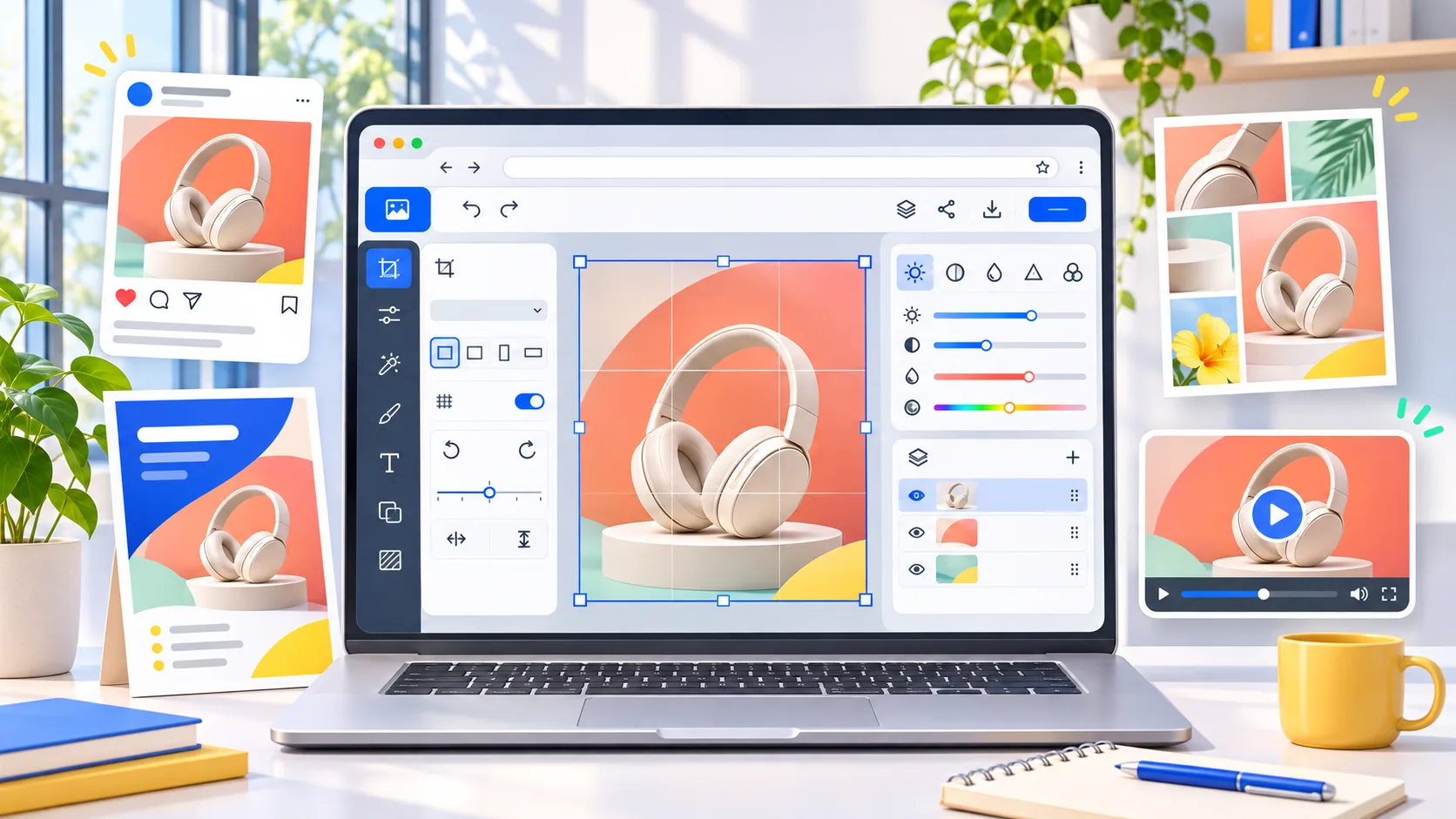
Free online photo editor
A photo edit can take ten seconds, but installing software, creating an account, uploading a private file, or removing a watermark can turn a small job into a frustrating one. A browser-based editor gives you a faster route for everyday work such as social posts, flyers, thumbnails, covers, product images, logos, and print-ready designs.
Adobe Express is one familiar option for editing images online. It supports common image adjustments, templates, animation, collages, background removal, text, and resizing. Photo Video Editor offers a separate browser-based workflow for photos, videos, logos, business cards, flyers, posters, reels, shorts, and stories. Its photo and video editors are free to use, require no installation or account, and don't add a watermark to exports. Files edited in those tools stay on your device instead of being uploaded to use the editor.
File types and upload requirements
Adobe Express's source workflow accepts JPEG, JPG, PNG, or WebP files under 40MB. Before editing, check three things:
- Format: JPEG and WebP work well for photographs and web publishing. PNG is useful when transparency matters.
- Dimensions: A small original may look soft when enlarged for print. A very large image may need resizing for a website or social platform.
- Purpose: A photo for a story, flyer, product page, or print order may need a different crop and aspect ratio.
Photo Video Editor is designed for local browser editing, so your working file doesn't have to leave your device just to begin. Save an original copy before making destructive changes, and keep the exported version separate from the source.
Animate your images online with Adobe Express
Adobe Express can turn a still image into an animated design. Select an animation effect, combine the image with text or other design elements, and prepare the result for digital channels. Motion can help a sale graphic, announcement, or story attract attention, but keep it restrained when the message needs to be read quickly.
For a more video-focused workflow, Photo Video Editor can turn still images into videos and export an MP4. Its free Vanity Studio CLI for Windows, macOS, and Linux can also turn a plain-language request, a product page, or local media into an editable MP4. The generated project opens in the editor, where you can change the script, timing, media, text, or layout before exporting. The CLI needs Google Chrome or Microsoft Edge, and voice-over or AI clips require your own provider API keys.
Create a photo collage
Collages bring multiple images together on one canvas. You can arrange photos by hand, begin with a preset layout, and then add text, graphics, icons, or a background. Use a consistent gap between images and decide which photo should carry the visual focus before adding decorative elements.
A practical collage workflow is:
- Choose the final canvas size, such as a social post, story, card, or print page.
- Import the images and remove duplicates or weak shots.
- Place the strongest image where the eye naturally lands.
- Crop each image to a compatible ratio without cutting off important faces or products.
- Add a short heading or caption, then check the design at phone size.
- Export a web copy and a higher-resolution copy when you also need photo editing and printing.
Photo Video Editor can also be used to create social graphics, covers, thumbnails, business cards, flyers, and posters in one browser tab.
Use the remove background tool
Background removal isolates the main subject so you can place it on a new color, shape, product scene, card, or advertisement. Adobe Express includes a Remove Background option. BeFunky and several other online editors also offer background removal and object retouching.
Photo Video Editor provides a free standard-definition background cutout. HD output is available through credits or Pro. Inspect hair, transparent objects, thin straps, fingers, and product edges before exporting. A cutout that looks acceptable at thumbnail size may show rough edges in a large flyer.
For a focused workflow, see the free online background remover guide. When the subject needs a new scene rather than a transparent cutout, a background changer may be more appropriate.
Add images from your device or image libraries
Editors can start with an image from your device or, where supported, a stock library. Check the usage rights for commercial work, advertising, client projects, and printed products. A stock image being visible in a library doesn't automatically mean every use is unrestricted.
For private files, local editing reduces the need to send the source image to a third-party server. This matters for unpublished product photos, client material, family pictures, and documents containing personal information. Photo Video Editor's photo and video editors work with files that stay on your device.
Select your image to load the edit menu
After selecting an image, the main controls usually cover crop, resize, rotation, filters, adjustments, text, effects, and animation. Make structural changes first. Apply creative styling after the composition and exposure are under control.
Adjust light and color
Adobe Express provides preset filters and manual controls for contrast, brightness, saturation, warmth, and sharpening. Blur can soften a background or create depth, while excessive sharpening can make edges look harsh and amplify noise.
A dependable order is exposure, white balance or warmth, contrast, highlights and shadows when available, saturation, and sharpening. Zoom to 100 percent before judging detail, then view the image at the size where people will actually see it.
Crop, rotate, flip, and shape the image
Resize controls can provide presets for social media, profile images, print, and web use. Custom dimensions are useful when a platform or printer gives you an exact specification. Shape crops such as circles, hearts, or stars can work for decorative designs, but a rectangular crop is usually easier to reuse.
Start from the original photo when you want to preserve its dimensions. Choosing a larger canvas doesn't create genuine detail that wasn't present in the source. Export tests are worth doing before sending a design to a printer.
Add text, frames, graphics, and icons
Text should remain readable against the image. Use contrast, spacing, and a clear hierarchy instead of placing several competing effects on top of the photograph. Frames, icons, GIFs, and graphics can support the message, but they shouldn't hide the product or make a portrait feel crowded.
Instantly download your finished product
Before downloading, check the crop, spelling, transparency, image quality, and file type. Use PNG when you need transparency or crisp graphic edges. Use JPEG for many photographic web images. Use SVG when the design is a vector logo or another design that needs scalable lines and shapes. Use MP4 for video.
Photo Video Editor supports free SVG export for applicable vector designs and free MP4 export for videos. Its exports don't carry a watermark. Keep the editable project or original assets when you expect revisions.
Adobe Express photo editing functions
Adobe Express combines photo editing with design features. Its core workflow includes scaling, sizing, filters, enhancements, blur, text overlays, templates, and background removal. It can turn a finished image into a flyer, social post, album cover, profile photo, or other design.
Other current browser options cover different levels of control. Canva focuses on templates and design layouts. Pixlr offers online photo and AI tools. Fotor includes enhancement, restoration, retouching, upscaling, object removal, background changes, and generated image tools. Picsart combines editing with a large template and effect library. Photopea is aimed at users who want a more professional, layered browser editor. BeFunky includes adjustments, portrait retouching, effects, background removal, and unwanted-object removal.
| Need | What to look for | Practical choice |
|---|---|---|
| Quick social graphic | Templates, crop presets, text, and fast export | Adobe Express, Canva, or Photo Video Editor |
| Detailed browser editing | Layers, selections, masks, and precise adjustments | Photopea or a full desktop editor |
| AI enhancement or generation | Clear tool limits and a visible price before use | Fotor, Adobe Express, or Photo Video Editor AI tools |
| Private local editing | Files remain on the device during editing | Photo Video Editor's photo and video editors |
| Photo editing and printing | Correct dimensions, resolution, color expectations, and export format | Any editor that supports the printer's specifications |
Generative AI for images and designs
Adobe Express includes generative AI features for creating social posts, flyers, posters, documents, presentations, and other designs. AI can shorten the distance between an idea and a first draft, but generated content still needs a human check for factual text, brand accuracy, unwanted objects, and licensing requirements.
Photo Video Editor offers optional AI tools for product shots, professional headshots, logo concepts, social visuals, ad creatives, posters, and photo fixes. These tools use paid credits, and the price is shown before you run one. Don't treat the free photo and video editors as proof that every AI feature is free. A background removal gives a free SD cutout, while HD requires credits or Pro.
For prompt-based workflows, the AI photo editor guide explains where generated editing can help and where manual review remains necessary. You can also use a prompt guide when preparing a controlled image brief.
Tons of free templates, video, and audio assets to start from
Templates reduce the time spent choosing dimensions and arranging common elements. Adobe Express provides templates for designs such as Instagram stories, posts, YouTube thumbnails, cards, and fashion or event promotions. A template is a starting point, not a substitute for checking the final message, image rights, and brand consistency.
Photo Video Editor is useful when you want to make a design from a blank canvas without signing up. It also covers video, logos, business cards, flyers, posters, covers, thumbnails, reels, shorts, and stories. Browse free photo templates for social media when you need a starting layout, then replace the sample assets with your own.
Photo editing cost and choosing a tool
Photo editing cost depends on the job, turnaround, retouching difficulty, number of images, and whether the result is for web or print. Common search phrases include photo editor cost, image editing cost, picture editing cost, photo editing cost per photo, and photo editing cost per hour. There isn't one universal rate that applies to every image.
Photo editing cost per photo in India, for example, can vary widely according to local market, freelancer experience, batch size, masking complexity, skin retouching, product cleanup, and delivery requirements. Ask what is included before comparing a per-photo quote with an hourly quote. A cheap basic color correction is a different service from detailed beauty retouching or a complex product cutout.
If you're doing the work yourself, calculate the total cost of the tool, credits, storage, export limits, and your time. Photo Video Editor's core photo and video editors are free, while optional AI tools use paid credits with the price shown before execution. This makes it easier to distinguish a free editing task from a paid AI operation.
Photo editing and printing
Online editing can prepare a design for printing at home or through a print service, but the editor cannot override the printer's requirements. Confirm the final dimensions, bleed, safe area, resolution, paper, and color expectations before export. Keep text away from edges and avoid enlarging a small image beyond what its detail can support.
For home printing, test one page first. Check that the crop matches the paper, faces are not too dark, and margins are even. For professional printing, ask the provider which file format and color profile they accept. Keep a high-quality master and create a separate compressed copy for online sharing.
Photo editing date and photo date taken editor questions
A photo can have more than one date: the date it was taken, the date it was modified, and the date it was exported. Cropping or adjusting an image may change the file's modification date without changing when the camera captured it. If the capture date matters for sorting, archives, legal records, or client delivery, preserve the original file and its metadata.
Most visual editors focus on pixels and design rather than acting as a dedicated photo metadata manager. Check the exported file's metadata with your operating system or a metadata tool, and don't assume that an edited copy retains every original field. Never change a date to misrepresent when an image was made.
Photo editor costume and photo editor costumes online
Some searches use phrases such as “photo editor costume” or “photo editor costumes online.” These usually point to a costume mockup, an outfit visualization, a product image edit, or a request to change clothing in a portrait. Use a regular photo editor for adding a costume image, removing a background, placing a subject in a scene, or creating a product composition. AI clothing-change tools can produce unrealistic seams, hands, logos, or patterns, so inspect the result before using it commercially.
Can I use the photo editor to make content for social media?
Yes. A photo editor can brighten an image, apply a filter, make a collage, add text, remove a background, and resize the canvas for different social channels. Start with the intended placement rather than forcing one crop everywhere. A square post, vertical story, reel cover, and profile image each give the subject a different amount of room.
Can I add frames or text to photos with Adobe Express?
Yes. Adobe Express lets you add frames and text, then customize the design with other effects and assets. The mobile app also supports editing, frames, and text for video. If you want to stay in a browser and avoid installation, Photo Video Editor provides browser-based photo and video editing with text, design, and export workflows.
Does the size or quality change after editing photos?
It can. Editing a photo without resizing generally preserves its dimensions, but selecting a different canvas size, cropping, scaling, or exporting with compression changes the result. Enlarging an image doesn't restore missing detail. Compare the exported file with the original at 100 percent and check the final use, whether that's a website, phone screen, social feed, or print.
Is there any limitation on the number of photos I can upload?
The source Adobe Express workflow states that you can add up to 32 images to one project, with Libraries available for accessing more images across projects. Limits can depend on the product plan and current interface, so verify them when planning a large batch. For a small local edit, fewer images usually means a simpler project and faster review.
Can I get Adobe Express for free? If so, what’s included?
Adobe Express has a free plan with core photo editing features, effects, and free templates. Paid plans and feature limits can change, so check the current plan page before committing to a recurring workflow. Other editors also combine free core tools with paid templates, storage, advanced exports, or AI credits.
Does Adobe Express photo editor allow me to change photo size?
Yes. You can choose preset dimensions for social media, print, and web projects or enter custom measurements. Use the original photo dimensions when you want to protect the source, and choose the final output size when you need a design that fits a specific placement. Always inspect small text and fine details after resizing.
Can I edit photos on my phone with Adobe Express?
Yes. The Adobe Express mobile app supports cropping, resizing, lighting adjustments, filters, background removal, text, and effects. Mobile editing is convenient for quick publishing, while a larger screen can make detailed masking, typography, and print preparation easier. Photo Video Editor works in a browser, so you can edit without installing a separate desktop program or mobile app.
How to choose the right free photo editor
Choose based on the task rather than the longest feature list. For a quick crop and export, a lightweight browser editor is enough. For a branded social campaign, templates and resizing matter. For detailed retouching, look for layers, masks, and precise controls. For AI, check the price, usage rights, and whether the result can be edited manually.
- Need no account and no watermark? Use a tool that states those conditions clearly before you start.
- Need privacy? Prefer a workflow where files stay on your device, and avoid uploading sensitive originals unnecessarily.
- Need SVG? Confirm that the design is vector-based and that SVG export is supported.
- Need video? Check for MP4 export, timeline controls, and whether the project remains editable.
- Need AI? Review the upfront credit price and inspect the output for errors.
- Need print? Start with the printer's dimensions and technical requirements, not just a social template.
For a wider comparison of no-cost options, see best free photo editing apps and best free photo editing software. The best editor is the one that handles your actual file, privacy needs, output format, and revision process without adding unnecessary friction.
Everything in this article works in the browser editor. No watermark, no account.