 Photo Video Editor
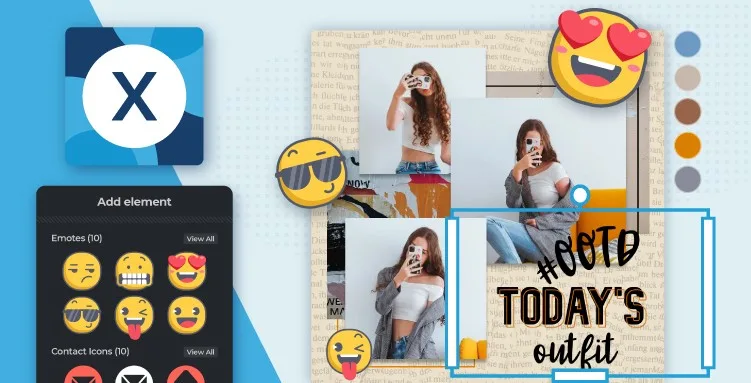
AI Photo Editor, Free Online Image Editing Tools
Photo Video Editor lets you edit photos and videos directly in your browser without downloading software, creating an account, or adding watermarks to exports. Create social posts, covers, thumbnails, reels, shorts, stories, logos, business cards, flyers, and more from one browser tab.
Open the online photo editor, import a file from your device, and work locally in the browser. Ordinary photo and video editing keeps your files on your device. Export vector designs as SVG or videos as MP4 where supported. Optional AI tools, including AI product shots, headshots, logo concepts, ad creatives, posters, and photo fixes, use paid credits with the price displayed before processing. Background removal includes a free SD cutout, while HD is available with credits or Pro.
Modern AI-Powered Photo Editor
Choose a blank canvas, preset, or platform-specific size, then work with layers, masks, text, shapes, overlays, and positioning tools.
- Photo editor: Crop, resize, rotate, flip, adjust light and color, apply filters, retouch, draw, add text, and arrange elements.
- Video editor: Cut clips, combine media, add text and graphics, and export MP4 videos.
- Logo maker: Create logos with shapes, text, colors, transparent backgrounds, and SVG export where supported.
- Business cards and flyers: Use print-friendly canvases and check margins before exporting.
- AI tools: Generate or improve selected visuals with visible credit pricing.
Start Editing Without Installation or Registration
- Open Photo Video Editor in your browser.
- Choose Photo editor, Video editor, Logo maker, Business cards, Flyers & posters, AI product shots, AI headshots, or Photo fix.
- Import a photo or video.
- Set the canvas or crop ratio.
- Adjust the image, add text or design elements, and review it at full size.
- Export the finished project as PNG, SVG, or MP4 where supported.
Photo Editing Features
Arrange, resize, rotate, flip, align, reorder, and blend layers. Use masks, transparency, alpha controls, and blend modes such as multiply, screen, overlay, darken, lighten, color, and luminosity. Crop to original dimensions, fixed ratios, social formats, print sizes, A4, A5, A6, letter, Full HD, or Ultra HD.
Create transparent cutouts for product listings, logos, stickers, thumbnails, and overlays. Adjust color, light, details, and scene settings before applying creative effects such as HDR-style contrast, blur, bokeh, mirror, dispersion, glitch, and duotone treatments. Retouch spots and objects, sharpen or blur areas, liquify selected regions, draw with multiple brush styles, and add text with font, alignment, curve, spacing, outline, punch-out, and shadow controls.
AI Editing Tools
AI features can generate or modify content, but every result should be checked for accuracy. Available tools include generative assistant, generative fill, extracted layers, generative expand, face swap, AI avatar, Sticker Maker, generative transform, background effects, background and object removal, super scale, super sharp, noise removal, AI product shots, professional headshots, logo concepts, ad creatives, posters, and one-tap photo polish. AI tools use credits where applicable, and the price is shown before the operation runs.
Online Photo Editing Without Watermarks
Photo Video Editor's photo and video editors do not add watermarks to exports and do not require an account to begin. This is useful for freelancers, shop owners, creators, and anyone working from a Chromebook or shared computer. Watermark-free export does not guarantee that every AI feature is free or that every source image is licensed for commercial use, so check resolution, transparency, fonts, and platform dimensions before publishing.
Photo and Video Editing in One Browser Tab
A product photo can become a reel cover, a logo can become an intro card, and a collection of photos can become a short advertisement. Use the browser video editor to arrange clips, add text and media, and export an editable MP4 without a watermark.
Practical Photo Editing Workflow
- Keep the original and work on a copy.
- Choose the final output size and format first.
- Crop, straighten, resize, and position the main subject.
- Correct exposure, contrast, highlights, shadows, saturation, and temperature.
- Retouch distractions and inspect edges at full size.
- Add text, logos, shapes, and stickers with sufficient contrast and spacing.
- Check readability on mobile screens.
- Export transparent PNG graphics, SVG vector artwork, or MP4 video as needed.
For AI edits, compare the result with the original and inspect faces, hands, product labels, shadows, fine edges, and text before publishing.
Frequently Asked Questions
How photo editing?
Start by choosing the final format and size. Crop and straighten the image, adjust light and color, remove distractions, add text or design elements, and export a copy. Photo Video Editor keeps normal browser editing local and does not require an account.
How photo editing in Photoshop?
Use a duplicate layer, crop and correct exposure and color, retouch with masks where possible, add design elements, and export a copy. Photoshop offers advanced control, while a browser editor is often faster for everyday graphics.
How photo editing app?
Choose an app or browser editor based on the task. Import the photo, set the canvas, make corrections, add text or overlays, check the image at full size, and export it. Also review watermarks, accounts, ads, export limits, and privacy.
How photo editing in AI?
Use an AI tool to describe or select a change, such as removing an object, replacing a background, improving sharpness, creating a product shot, or making a headshot. Review every result carefully. Photo Video Editor's optional AI tools use paid credits with the cost displayed before processing.
What photo editing apps are free?
Free options include Photo Video Editor, Canva, Adobe Express, Pixlr, Fotor, Picsart, Photopea, and iLoveIMG. Features and restrictions vary. Photo Video Editor's browser photo and video editors require no installation or account and do not add watermarks to exports.
What photo editing software is free?
Free browser software includes Photo Video Editor and Photopea. Canva, Adobe Express, Pixlr, Fotor, and Picsart also offer free plans or free editing features. Choose according to export, privacy, templates, layers, AI, and file-format requirements.
Can I edit photos without uploading them?
Yes. With Photo Video Editor's ordinary browser editing, files remain on your device and are not uploaded for the editor to work. Optional AI operations are separate, so review the tool information before running one.
Can I export a logo as SVG?
Yes, SVG export is available for supported logo and design workflows. SVG keeps vector artwork scalable for business cards, websites, and large signs. Check text, strokes, and transparency after export.
Everything in this article works in the browser editor. No watermark, no account.