 Photo Video Editor
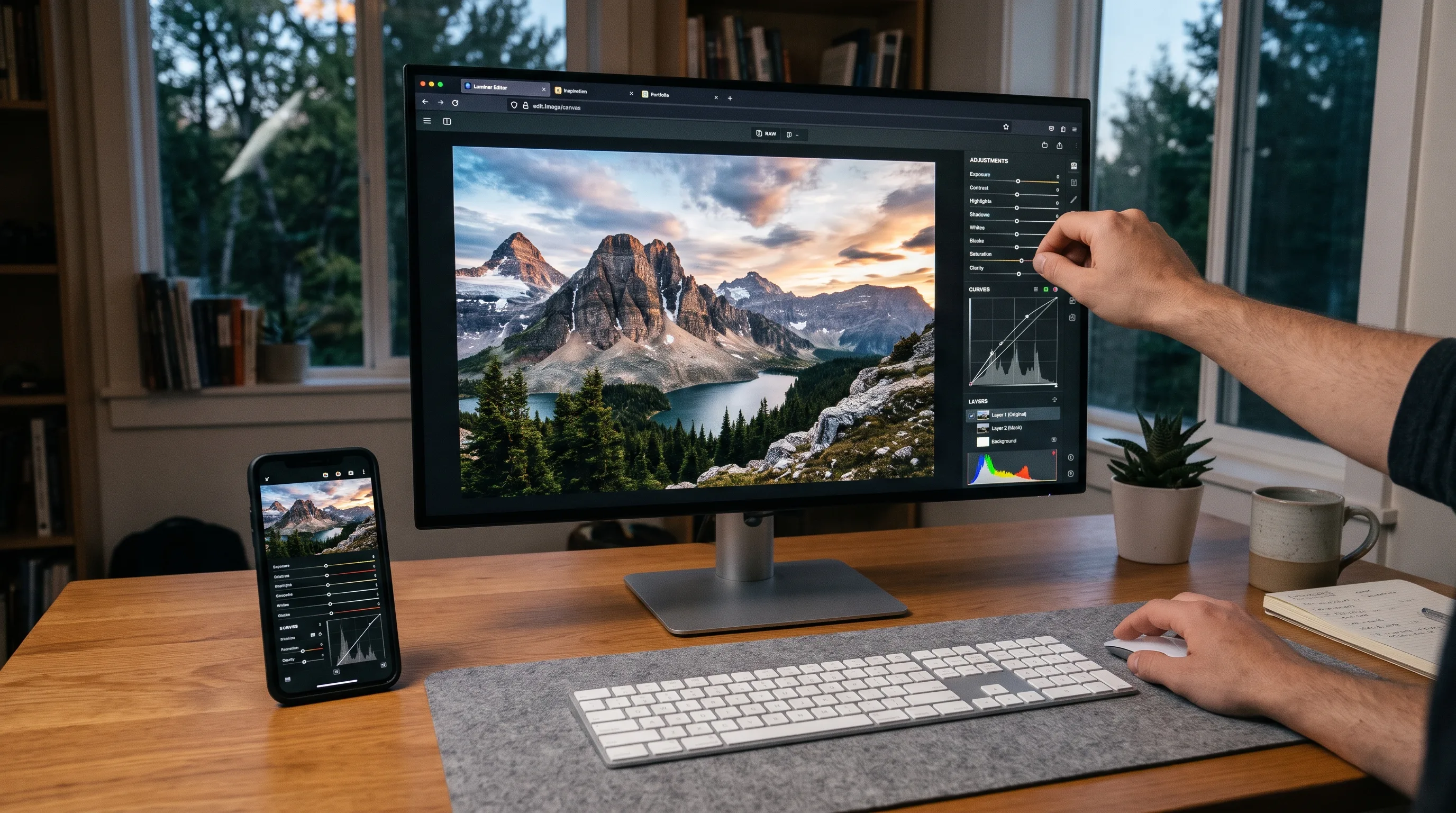
The best free photo editing software depends on whether you need a RAW developer, a pixel editor, or both. Darktable and RawTherapee are designed for camera RAW files, while GIMP and Krita are better for layers, brushes, retouching, and detailed image changes. Browser-based editors are convenient for quick jobs such as creating thumbnails, flyers, social posts, and transparent graphics without installing software.
For a flexible workflow, use a RAW editor to correct exposure and color, then move the exported image to an image editor when you need layers, selections, masking, text, or detailed retouching. If you mainly edit JPEG or PNG files, a general editor such as Photo Video Editor may be all you need.
Best free photo editing software options
- Darktable: Best for RAW development, photo catalogs, non-destructive edits, ratings, metadata, masks, and repeatable workflows.
- RawTherapee: Best for detailed RAW processing, with extensive control over exposure, color, sharpening, noise, and lens corrections.
- ART: A RawTherapee-based alternative with a workflow that some photographers find easier to approach.
- GIMP: A powerful free Photoshop alternative for layers, masks, selections, retouching, composites, and web graphics.
- Krita: Useful for brush-based editing, digital painting, cleanup, creative treatments, and image compositing.
- Snapseed: A practical mobile editor with curves, selective adjustments, healing, perspective tools, and brushes.
- Photo Video Editor: A fast browser-based option requiring no installation or account, with free photo and video exports without watermarks.
- digiKam: Helpful for organizing and managing a large photo collection alongside a dedicated RAW processor.
RAW editors versus image editors
RAW editors work with camera sensor data and are ideal for exposure, white balance, highlights, shadows, tone curves, color, lens corrections, sharpening, and noise reduction. These edits are generally stored as instructions, allowing you to revisit them without changing the original file.
Image editors work with rendered files such as JPEG, PNG, and TIFF. They are better for layers, selections, paths, masks, object removal, painting, compositing, text, and precise brush-based changes. Some applications support both workflows, but separating RAW development from pixel editing can make the learning process easier.
How to choose the right editor
Choose a RAW editor if you shoot RAW, need maximum control over exposure and color, want a non-destructive workflow, or need to process many photos consistently. Choose an image editor if you need layers, selections, masks, cloning, healing, compositing, text, or graphic elements. Choose a browser editor if you want a quick export without installation or an account. Choose a mobile app if you shoot and publish primarily from your phone.
A simple beginner workflow
- Keep the original file and work on a copy or use non-destructive editing.
- Decide where the image will be used, such as a website, social post, phone story, or print.
- Crop and straighten the image.
- Correct exposure, highlights, shadows, whites, and blacks.
- Adjust white balance, contrast, and color carefully.
- Use masks or brushes for local adjustments.
- Retouch distractions without making the image look unnatural.
- Sharpen according to the final destination.
- Export a copy using JPEG, PNG, or SVG as appropriate.
Free online photo editors
Browser-based tools are useful on Chromebooks, shared computers, or devices where software installation is inconvenient. Photopea offers a professional-style, layer-based workflow, while Pixlr and Canva provide accessible editing and design features. Photo Video Editor is useful when you want photo, logo, flyer, business card, thumbnail, and video tools in one browser tab. Its normal editing workflow keeps files on your device, and free photo and video exports do not add a watermark.
AI photo editing
AI tools can remove backgrounds, clean up objects, retouch portraits, generate product scenes, expand images, and suggest adjustments. Review results carefully, especially edges, hands, reflections, labels, small text, and product proportions. Check pricing before using paid credits, and keep the original image for comparison.
Which free editor should you start with?
Start with Darktable or RawTherapee if you primarily shoot RAW and want a non-destructive photography workflow. Choose GIMP for a free Photoshop-style editor with layers and masks. Try Krita if brush work and digital art are important. Use Snapseed when your phone is your main camera and publishing device. Choose Photo Video Editor when you want to finish a photo or design quickly in a browser without installing software, creating an account, or accepting a watermark.
Everything in this article works in the browser editor. No watermark, no account.