 Photo Video Editor
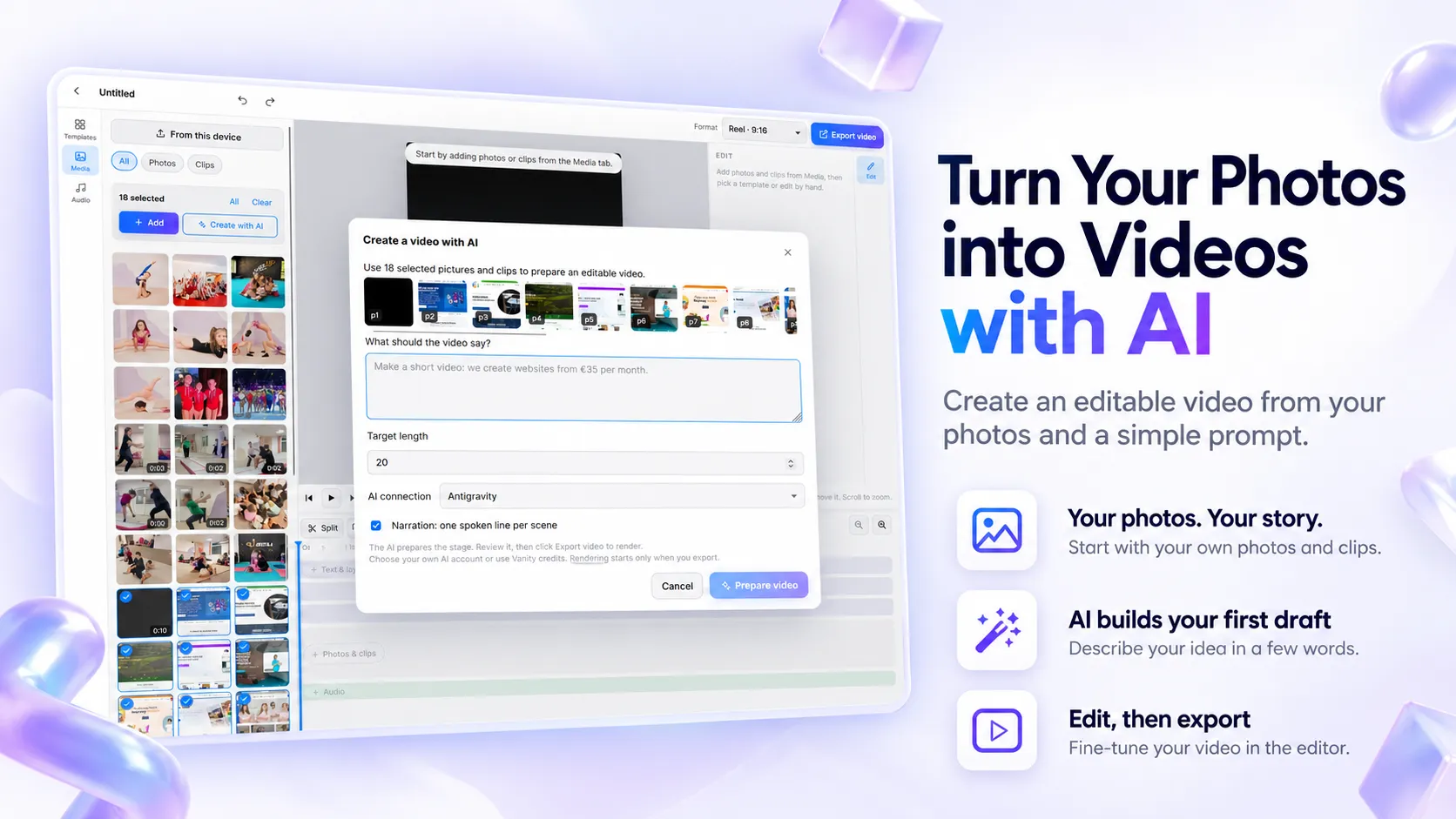
Make Videos from Your Photos with AI
Have product photos, event pictures or screenshots you want to turn into a video? Photo Video Editor uses AI to arrange your media into scenes, write on-screen text and set the timing. You get an editable project, so you can change the first draft before exporting it.
The video editor and watermark-free exports are free. AI planning uses a supported AI connection or credits, which may involve separate charges. You can choose the connection that suits your budget instead of relying on a single built-in model.
Open the video editor to add your photos and select Create with AI, or follow the walkthrough below.
What kind of video can you make from photos?
This tool builds a video around the pictures and clips you provide. It is useful for a product promotion, a property walkthrough, a restaurant offer or an event recap. The AI helps with scene layouts, captions and pacing; your original media supplies the visuals.
That is different from generating new footage or making a person in a still photo move. If you want to animate the contents of a single image, you need an image-to-video generation tool. Here, the goal is to turn a collection of real photos into a video you can continue editing.
How to make a video from photos with AI
1. Add and select your photos
Open the editor and add photos, screenshots or short video clips from your device. Select the files you want to include, then click Create with AI. Start with a focused selection: for a product ad, that could be an overall product shot, two details and a picture showing it in use.
2. Describe the video you want
In What should the video say?, explain the purpose, audience and main message. Include any price, offer conditions and call to action exactly as you want them shown. If you have a script, describe the scenes in order.
For example, a brief for a website service could look like this:
Create a 20-second vertical video for small business owners using these website screenshots. Start with “Need a website for your business?” Show three designs, then display “Websites from €35 per month”. Finish with “Message us to discuss your website”. Keep the wording direct. Do not add discounts or promises.
Replace the example offer with your own details. Even with a precise brief, check the generated wording before publishing, especially prices, names and conditions.
3. Choose the length and AI connection
Set a target length from 5 to 180 seconds; the default is 20 seconds. For a simple promotion, try 15–30 seconds as a starting point. A walkthrough or explainer may need longer.
Choose an available AI connection or use credits for planning. You can also enable narration when a supported voice connection is available.
4. Prepare and review the video
Click Prepare video. The AI plans the scenes, and the editor builds an editable draft. Review the opening image, read each headline and check that viewers have enough time to read it.
You can change text, swap pictures, adjust scene lengths and reorder scenes. If the draft misses your point, revise it in the editor or try a more specific brief.
5. Export without a watermark
Choose vertical, square or landscape format to suit where you plan to publish. When the video is ready, click Export video to render an MP4 in your browser without a watermark. Watch the exported file once before posting to check cropping, text and audio.
For more on trimming and manual editing, see the free online video editor guide.
What is free, and when does AI cost extra?
Editing and exporting are separate from AI usage. You can use the editor and export without a watermark for free. AI planning depends on the connection you select:
- Your own AI connection: usage depends on the provider, connection method and limits of your account.
- An API key: usage is billed under your API provider's terms. Do not assume a chat subscription includes API usage.
- Credits: use the credit option for planning and check the displayed cost before starting. See current pricing.
Optional narration uses a supported voice connection and may have separate costs or limits. Check the selected connection before generating a voice-over.
Which AI model should you use?
A vision-capable model can use a contact sheet of your selected pictures to help plan scenes around their content. That is useful when you want it to distinguish a product close-up from a wider shot or choose between several room photos.
A text-only model plans from your brief and file information rather than seeing the pictures. Give files descriptive names, such as kitchen-wide.jpg or blue-bag-detail.jpg, and explain what belongs in each scene.
Check the editor's connection options for supported account integrations and API providers. Choose based on the kind of input the model can use, its availability and its cost.
Are your photos uploaded?
The editor stores project media locally in your browser and renders exports on your device. Using an external AI connection does send information outside your device.
For AI planning, the information includes your brief and details about the selected files. A vision model also receives a contact sheet containing selected images; a text-only model uses file information instead. This is different from uploading your whole media library.
The selected provider's data-handling terms apply to what you send. If you enable narration, the voice service also needs the narration text. Review the relevant connection and privacy information before using confidential client material.
Get a better result from your first draft
- Give the video one job. Promote one offer or explain one service, rather than fitting your entire business into 20 seconds.
- Use clear photos. A close product shot is easier to read on a phone than a crowded image with several competing subjects.
- Put essential details in the brief. Supply the actual price and contact details instead of asking the AI to fill them in.
- Keep captions short. Read them aloud while previewing. If you cannot finish a line before the scene changes, shorten it or extend the scene.
- Check the crop. A landscape picture may need repositioning in a vertical video to keep the subject visible.
- Finish with one clear next step. Tell viewers whether to visit your site, send a message or book an appointment.
If a product photo needs cleanup first, use the AI photo editor or background remover, then add the updated image to your video.
Frequently asked questions
Can I make a video from photos for free?
You can edit and export videos without a watermark for free. AI planning is separate: charges or usage limits depend on your selected AI connection or credits.
Does AI animate the people or objects in my photos?
This workflow arranges your existing photos and clips into an editable video with scene layouts, text and timing. It is not a tool for generating new motion inside a still photograph.
Can I change the video after AI creates it?
Yes. The draft remains an editable project. You can change headlines, replace pictures, reorder scenes and adjust durations before exporting.
Do I need a paid AI subscription?
A paid chat subscription is not required for every route. You can use the supported connections available to you or credits for planning. Each option has its own billing and usage limits.
Can I add a voice-over?
Yes, when a supported voice connection is configured. Narration can add a spoken line to each scene. Listen to it before exporting to check pronunciation and timing.
Can I make vertical videos for Reels or Shorts?
Yes. Choose a vertical format and check the placement of text and images before exporting. Square and landscape formats are also available.
Create a video from your photos. Add your media, describe your idea and review the AI draft before exporting.
Everything on this page works in the browser editor. No watermark, no account, and your files never leave your device.