 Photo Video Editor
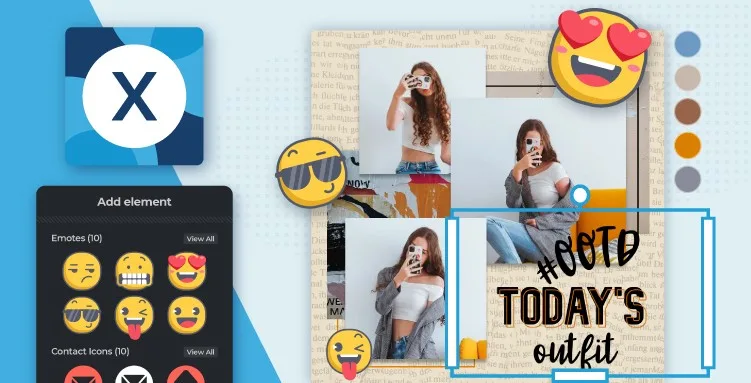
Modern AI-Powered Photo Editor for Quick and Professional Edits
Photo Video Editor is a free browser-based photo and video editor that requires no installation or registration for its core workflow. Edit photos and videos directly on your device, without watermarks on exports or uploading files to a cloud workspace.
Use it for social posts, product images, thumbnails, covers, logos, business cards, flyers, posters and other visual projects. Import an image from your device, drag it into the editor or paste it from the clipboard, then work with layers, text, shapes, stickers and uploaded media.
Photo Editing Tools
- Crop, rotate, flip and resize images.
- Use fixed ratios such as 1:1, 4:3, 16:9 and 9:16.
- Prepare designs for posts, stories, covers, profile images, ads and thumbnails.
- Adjust colour, light, detail and scene settings.
- Apply HDR, focus, bokeh, reflect, dispersion, glitch and colourize effects.
- Work with layers, masks, blend modes, visibility and opacity.
- Add text, shapes, frames, arrows, stickers and other design elements.
- Export supported designs as image files, SVG files or MP4 video projects.
Cutouts, Background Removal and Retouching
Isolate subjects or remove selected areas with automatic selections, brushes, shapes and contiguous selection tools. Use softness and invert controls to refine edges. The background remover provides a quick subject cutout, with free SD output and HD output available through credits or Pro.
Liquify and retouching tools help reshape areas, remove spots and objects, blur or sharpen details, and lighten or darken selected regions. Use low brush strength and several passes for more natural portrait edits.
Adjustments, Filters and Effects
Start with automatic corrections, then make small manual changes to exposure, contrast, colour and detail. Filters can establish a visual direction, while effects such as HDR, focus, bokeh, reflect, dispersion, glitch and colourize add creative styling. Apply effects on duplicate layers when possible so you can reduce opacity, mask areas and compare results with the original.
AI Photo Editing Tools
Optional AI tools can speed up background removal, object removal, image expansion, layer extraction and other complex edits. Available tools include generative fill, generative expand, generative transform, face swap, AI avatar, Sticker Maker, backdrop generation, super scale, super sharp and noise removal. AI tools use paid credits, and the price is shown before an operation runs.
Specific prompts generally produce better results. Describe the subject, the exact change, what must remain unchanged and the desired lighting or style. Always review AI results for altered faces, lettering, logos, fingers and product details.
Editing for Social Media and Design
Choose the final placement before applying filters. Use square formats for many profile and feed graphics, and 9:16 for stories, reels and shorts. Leave room for interface overlays, keep text readable at thumbnail size and inspect the final design on a phone before publishing.
How to Edit a Photo
- Open the editor in a modern browser.
- Import a local image or paste it from the clipboard.
- Crop and straighten the image for its final format.
- Correct light and colour before applying creative filters.
- Remove unwanted objects or cut out the subject if needed.
- Add text, shapes or stickers after the composition is stable.
- Check the design at 100% zoom for halos, blur and spelling errors.
- Export in the format required for the project.
Photo Editing vs Video Editing
Photo editing focuses on still images, pixels, layers and composition. Video editing works across time and includes clips, cuts, transitions, audio, captions and a timeline. Prepare still assets in the photo editor, then use the browser-based video editor for reels, shorts, ads and tutorials with MP4 export.
Privacy and Exporting
Core editing takes place on your device, making the editor useful for personal photos and private projects. Temporary browser history is not permanent project storage, so save or export finished work before clearing browser data, changing browsers or using a cleaning routine.
Everything in this article works in the browser editor. No watermark, no account.