 Photo Video Editor
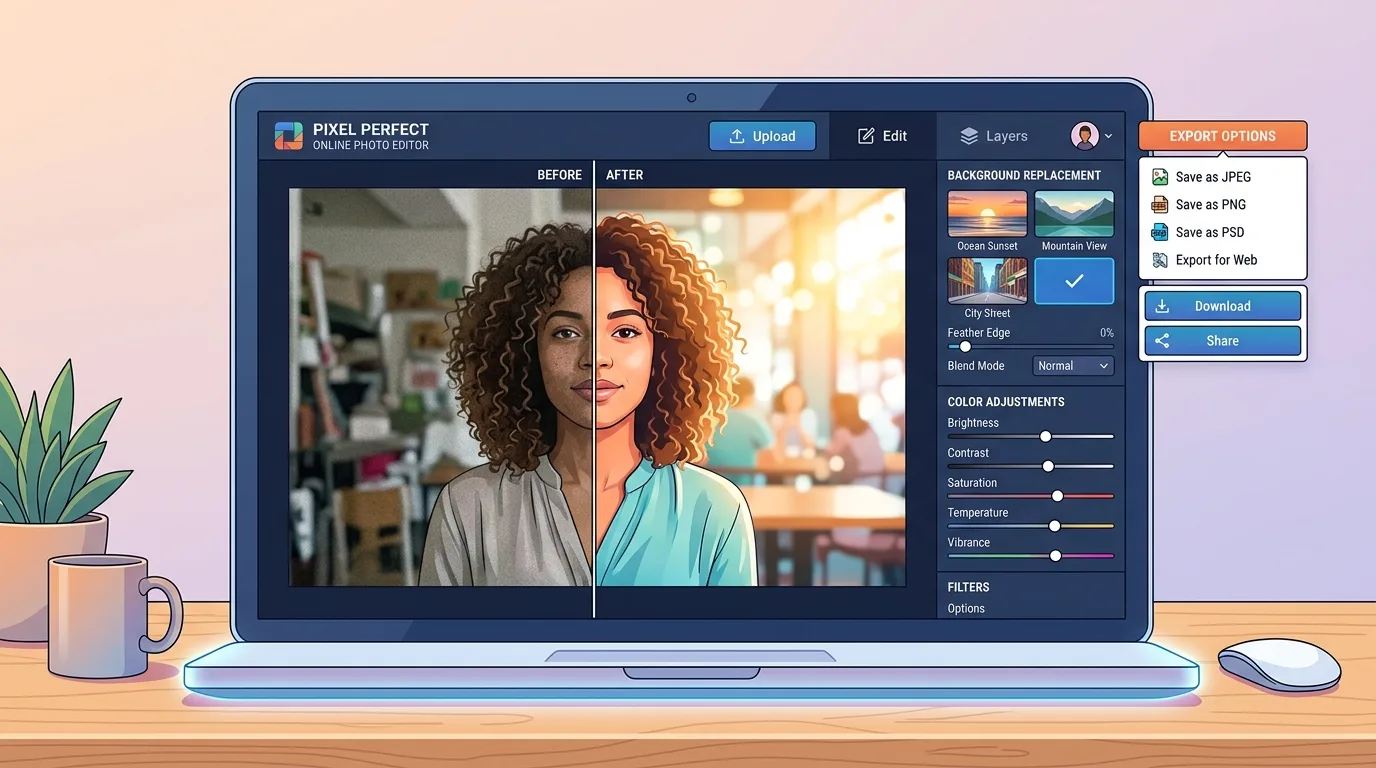
A five-minute image edit can turn into an hour when you need one tool for a crop, another for a background change, and a third for the final export. A browser-based photo editor can keep those steps together, especially when you need a post, cover, thumbnail, product image, or print-ready design quickly.
Photo editing covers much more than adding a filter. It includes correcting light and color, removing distractions, changing a background, preparing images for social media, making business graphics, and exporting the right file for screen or print.
What Is Photo Editing?
Photo editing is the process of changing a photograph or raster image to improve its appearance, communicate an idea, or meet a technical requirement. Edits can be subtle, such as correcting white balance, or highly creative, such as placing a product in a studio scene.
Common edits include:
- Cropping and resizing
- Straightening a tilted image
- Adjusting brightness, contrast, highlights, and shadows
- Correcting color temperature and saturation
- Removing blemishes or unwanted objects
- Replacing or removing a background
- Adding text, shapes, logos, and frames
- Preparing images for websites, social platforms, or printing
Photo editing and photo manipulation overlap, but they aren't identical. Editing usually improves or prepares an existing image. Manipulation can change the scene or meaning more substantially. The distinction matters when an image needs to represent a real event, person, or product accurately.
How Photo Editing Works
A reliable workflow protects the original file and makes changes in a sensible order. Start with the image's purpose. A square product image for an online shop needs a different crop and export from a full-page flyer.
- Import or open the image. Use the highest-quality original available.
- Set the composition. Crop, rotate, and straighten before detailed retouching.
- Correct light and color. Fix exposure, white balance, contrast, and distracting color casts.
- Retouch selectively. Remove temporary distractions, dust, or small defects without making the subject look artificial.
- Apply creative changes. Add text, graphics, a background, or a preset when the project needs them.
- Check the image at full size. Look for halos, repeated textures, clipped highlights, and rough selections.
- Export a copy. Keep the editable project or original file separate from the version made for publishing.
For a practical browser workflow, use Photo Editing Online to open an editor without installing software or creating an account. The files you edit stay on your device while you work in the editor.
Photo Editing Tools and Techniques
Cropping, resizing, and composition
Cropping removes empty space and directs attention to the subject. Before cropping, check the destination dimensions. A social post, story, thumbnail, website banner, and printed card may all need different proportions.
Resize only after deciding whether the image is for a screen or for print. Enlarging a small image can't recreate detail that was never captured. For print, the required dimensions and resolution depend on the physical size and the printer's specifications.
Light and color correction
Adjust exposure before contrast, then refine highlights and shadows. If skin tones or product colors matter, use a neutral reference and avoid pushing saturation until the image looks unnatural.
Small corrections often look more professional than heavy filters. View the image on more than one screen when possible, because brightness and color vary between displays.
Retouching
Retouching can remove dust, temporary blemishes, stray objects, or visual clutter. Work at a comfortable zoom, then inspect the result at normal size. Repeated patterns, blurred textures, and overly smooth skin are signs that the edit has gone too far.
Photo editing and background change
Background changes are useful for product listings, profile photos, social graphics, and promotional designs. A convincing result depends on the subject's edges, lighting direction, shadows, and color temperature. A bright subject with a hard daylight shadow won't look natural on a dim indoor background without further adjustment.
Background removal can be a first step, not the whole job. After cutting out the subject, check hair, transparent areas, glasses, wheels, and thin objects. Add a soft shadow or adjust the subject's color only when the new scene calls for it.
For a quick cutout, try Free Online Background Remover. It provides a free SD cutout, while HD output is available through credits or Pro.
Text, logos, and layout
When an image becomes a post, flyer, cover, or business card, treat typography as part of the design. Use readable contrast, leave enough space around the subject, and keep logos sharp. A vector logo is usually better for repeated resizing, so an SVG export can be useful for branding work.
How to Edit Photos Online
Online photo editing is useful when you need to start immediately, work from a Chromebook or another shared computer, or avoid installing a large application. The basic process is simple:
- Open the browser editor.
- Choose Photo editor or the design type you need.
- Import an image from your device.
- Crop, correct, retouch, or add design elements.
- Review the image at its intended size.
- Export the finished file in the format required for the destination.
Photo Video Editor supports browser-based photo and video editing, posts, covers, thumbnails, reels, shorts, stories, logos, business cards, flyers, and posters in one tab. The editor doesn't require an account or installation, and exports don't add a watermark. Files edited in the editor aren't uploaded for use.
That setup is useful when a client needs a fast revision or when you want to test a design before signing up for a larger platform. It also avoids the friction of downloading an installer for a one-off task.
AI Photo Editing
AI tools can automate repetitive work, but they still need human review. They are especially helpful for background removal, object cleanup, product scenes, portrait variations, and quick image enhancement.
Photo Video Editor's optional AI tools include AI product shots, pro headshots, logo concepts, social visuals, ad creatives, posters, and photo fixes. These tools use paid credits, and the price is shown before you run an operation. Background removal includes a free SD cutout, with HD available through credits or Pro.
Use AI Photo Editor when you want automated assistance, but check every generated result before publishing. AI can produce incorrect text, distorted small objects, uneven edges, or details that were never present in the source image.
When AI editing is a good fit
- You need several product-scene variations from one product photo.
- You want a quick portrait polish or headshot concept.
- You need to remove a background from a straightforward subject.
- You want to explore poster, logo, or advertising concepts before refining them by hand.
When manual editing is safer
- The image contains important legal, technical, or documentary details.
- Brand colors, packaging text, or product geometry must remain exact.
- The subject has complex hair, transparent material, or overlapping objects.
- You need repeatable edits across a large catalog.
What Photo Editing Apps Are Free?
Some photo editing apps offer a free core editor, while others limit exports, advanced tools, storage, templates, or AI features. “Free” can mean different things, so check whether the app requires an account, adds a watermark, limits resolution, or charges for the tool you actually need.
Free options include browser editors and downloadable apps. Photo Video Editor's photo and video editors are free to use in the browser, with no account, installation, or watermark on exports. Optional AI tools are separate and use paid credits.
Compare the practical details rather than only the feature count:
| Question | Why it matters |
|---|---|
| Is an account required? | An account can add friction when you only need a quick edit. |
| Does the export have a watermark? | A watermark can make a free result unusable for client or business work. |
| Are files uploaded? | Local processing may be preferable for private photos or unreleased products. |
| What formats are supported? | JPEG, PNG, SVG, and MP4 serve different photo, design, and video needs. |
| Are AI tools included? | AI features may have separate credit costs even when basic editing is free. |
For a focused comparison, see Best Free Photo Editing Apps. The best choice depends on the job, your device, and the export you need.
What Photo Editing Software Is Free?
Free photo editing software can be browser-based or installed on a computer. Installed software may offer deeper offline controls, while a browser editor can be faster for occasional work and shared devices.
Look for layers, masks, non-destructive adjustments, text controls, export formats, and support for the image sizes you use. If you need a vector logo, confirm that SVG export is available. If you need a video made from photos, confirm that MP4 export is supported.
Photo Video Editor provides free SVG export for suitable designs and free MP4 export for videos. Its Best Free Photo Editing Software guide can help you compare browser and installed workflows without assuming that one tool fits every project.
Photo Editing and Printing
Photo editing and printing require different checks from social publishing. Before sending an image to print, confirm the physical dimensions, crop, color profile requested by the printer, and the file format they accept. Keep important text and faces away from the trim edge.
If you're searching for “photo editing and printing near me,” ask the shop about file dimensions, bleed, paper type, color correction, and whether they make automatic adjustments. Those details can affect the final result more than another filter.
For photo editing and printing at home, make a small test print first. Screens are backlit, while paper reflects light, so a picture that looks bright on a monitor may print darker.
Photo Dates and Metadata
A photo's date can come from metadata recorded by the camera or phone, the file system, or a later export. These dates aren't always the same. Copying, messaging, editing, and uploading an image can remove or change metadata.
A photo editing date usually describes when the file was changed or exported. The photo date taken is the original capture date when that metadata is still present. If you're looking for a photo date taken editor, choose a tool that lets you inspect or manage metadata separately from visible image content.
Changing the visible date printed on a photo is different from changing its embedded metadata. Keep an original copy and label edited versions clearly, especially for records, invoices, property documentation, or family archives.
How Much Does Photo Editing Cost?
Photo editing cost depends on the complexity of the image, the required turnaround, the editor's experience, the number of images, and whether the work includes compositing, clipping paths, retouching, or commercial usage.
Common pricing models include:
- Per photo: useful when every image has a similar task.
- Per hour: useful when the scope is uncertain or revisions are likely.
- Per project: useful for a defined batch, campaign, catalog, or design package.
- Subscription or credits: common for software features and optional AI tools.
Searches such as “photo editing cost per photo” and “photo editor cost” don't have one universal answer. A simple crop and exposure correction takes less work than hair masking, jewelry cleanup, or a realistic background replacement.
The phrase “photo editing cost per photo in India” also needs context. Local rates vary by city, skill level, image type, deadline, and client requirements. Ask what the quoted price includes: revisions, source files, commercial use, color correction, background removal, and delivery format.
Photo editing cost per hour is useful for open-ended work, but request an estimated range before starting. For a defined batch, a per-photo or project quote may be easier to compare. Software pricing is separate from professional editing labor, so don't treat a free app as a complete cost estimate for a finished commercial image.
Photo Editor Costumes Online
People searching for “photo editor costume” or “photo editor costumes online” may be looking for a costume-themed photo effect, a digital outfit change, or a way to place a person into a costume scene. The editing method depends on the result:
- Use a template or overlay for a quick social image.
- Use background removal when the person needs to be placed into a new scene.
- Use AI cautiously for outfit concepts, then inspect hands, clothing edges, faces, and text.
- Use manual layers and masks when the costume must match a real product or event design.
Don't present an AI-generated costume image as a real photograph when that distinction matters. Label creative composites clearly for client, news, educational, or promotional use.
Photo Editing for Social Media and Business
One source image can become a square post, vertical story, reel cover, thumbnail, website banner, flyer, or business card. Start with the master image, then create separate crops for each destination instead of stretching one export everywhere.
For creators who also need video, the free Vanity Studio CLI for Windows, macOS, and Linux can turn a plain-language request, a product page, or local media into an editable MP4. It writes a script, gathers pictures and clips, and renders through Photo Video Editor in a headless browser on your machine. Each video opens as an editable project, so you can change it by hand before exporting.
The CLI needs Google Chrome or Microsoft Edge. Voice-over and AI clips require your own provider API keys. This workflow is useful for ads, reels, product demos, and website tutorials when you want a starting draft rather than a locked video.
Photo Editing Privacy and Export Checks
Before choosing an editor, check what happens to your files. Private family photos, unreleased products, customer images, and documents may need local processing. Photo Video Editor's editor doesn't upload the files you edit for use.
Before delivery, check:
- Image dimensions and aspect ratio
- File type and compression
- Transparent background behavior
- Text spelling and logo placement
- Edge quality around cutouts
- Watermarks or unexpected branding
- Whether the export is suitable for screen or print
Frequently Asked Questions
How photo editing?
Photo editing starts by opening an image, cropping and straightening it, correcting light and color, retouching distractions, applying any required creative changes, and exporting a copy for its final use.
How photo editing in Photoshop?
Open the image in Photoshop, preserve the original, crop and straighten it, adjust exposure and color, use layers and masks for selective changes, retouch carefully, and export a copy in the required format.
How photo editing app?
A photo editing app usually lets you import an image, apply adjustments or templates, review the result, and save or export a copy. Browser editors use the same process without requiring an installed application.
How photo editing in AI?
AI photo editing automates tasks such as background removal, object cleanup, enhancement, product scenes, and portrait creation. Review faces, hands, text, product details, and edges before publishing.
What photo editing apps are free?
Free options include browser-based editors and apps with free core tools. Photo Video Editor offers free photo and video editing in a browser, without an account, installation, or watermark on exports. Optional AI tools use paid credits.
What photo editing software is free?
Free software includes browser tools and downloadable applications. Compare layers, masks, offline access, export formats, resolution limits, watermarks, and AI charges before choosing one for regular work.
Everything in this article works in the browser editor. No watermark, no account.