 Photo Video Editor
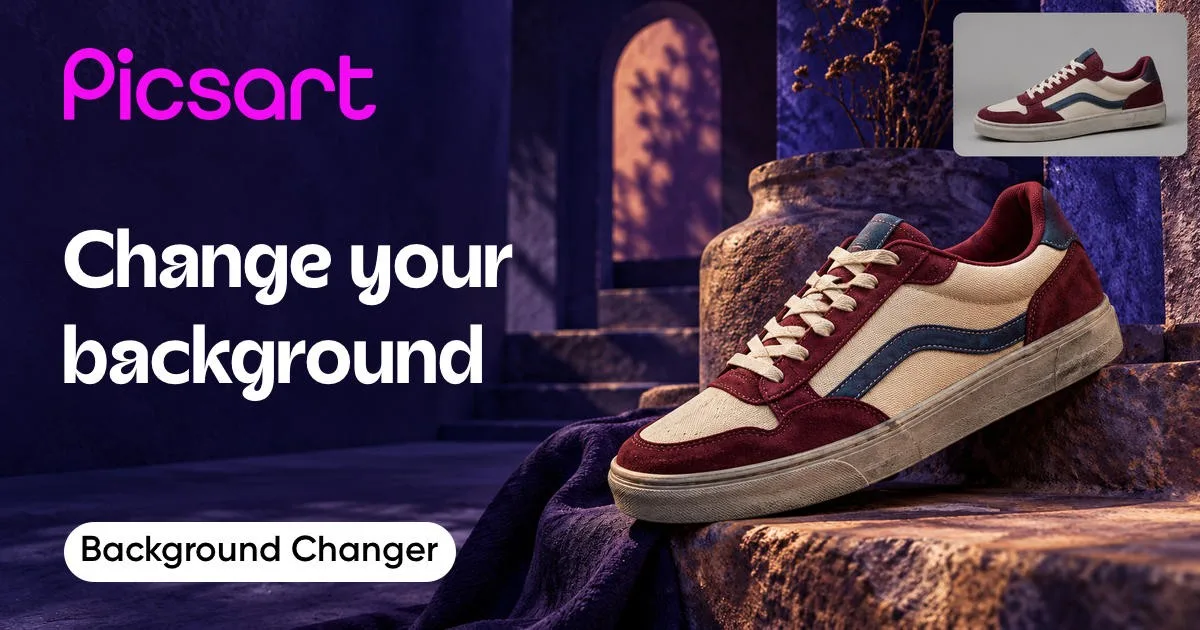
A background change can turn a cluttered product photo into a clean catalog image in a few minutes. You can remove the original setting, make it transparent, add a white or black backdrop, or place the subject in a new scene.
Photo Video Editor is a browser-based option for this workflow. Its photo editor needs no installation or account, adds no watermark to exports, and does not upload the files you edit to use the editor. Open the Photo Video Editor, choose the relevant tool, and export the finished image when it looks right.
It also covers the surrounding work many creators need: posts, covers, thumbnails, reels, shorts, stories, logos, business cards, flyers, and posters. Optional AI tools can create product shots, pro headshots, logo concepts, social visuals, ad creatives, posters, and photo fixes. These AI tools use paid credits, and the price is shown before you run one.
Tool rating
The source page presents a 4.9 out of 5 rating and labels the tool Excellent on Trustpilot. Ratings can change over time, so treat them as a snapshot rather than a guarantee for every image or device.
AI-powered background editor
AI background editing identifies the main person or object and separates it from the scene. That removes much of the manual tracing work involved in selecting a subject. It works especially well for clear product photos, portraits, clothing, food, and other subjects with visible contrast against the background.
Review the result before you publish it. Hair, transparent packaging, glasses, jewelry, plant leaves, bicycle spokes, reflections, and soft fabric edges often need closer inspection. A good cutout is only the first step. The replacement background also needs compatible light, scale, perspective, and shadow.
Pre-made background library
Pre-made backgrounds help when you need a finished visual quickly. Look for a backdrop that matches the subject's purpose, such as a neutral studio surface for a product, a simple wall for a profile image, or a bright scene for a social post.
You can also upload your own background. That gives you more control over brand colors, campaign locations, seasonal imagery, and the exact space available in a design.
Effortless customization
Background editing does not have to stop at replacing one image with another. Try a transparent result, a solid color, a gradient, a texture, or a generated scene. Keep the subject large enough to read at the final size, leave room for text when the image will become an ad, and avoid backgrounds with detail that competes with the product.
How to change photo backgrounds
The basic process is short, but the review stage makes the difference between a rough cutout and a believable image.
Upload your image
Click the upload or browse option and choose the image you want to edit. Use the highest-quality original available. A compressed screenshot or a tiny social download gives the background tool less detail to work with, especially around hair and thin edges.
Remove and replace the background
- Open a background remover or background changer.
- Upload the photo from your device.
- Let the editor detect the main subject, then inspect the cutout.
- Choose a transparent background, a color, a supplied image, a library option, or an AI-generated scene.
- Adjust the subject's size and position so it belongs in the new setting.
- Check edges, shadows, reflections, and color temperature.
- Export the result in the format suited to its destination.
For a free transparent cutout in Photo Video Editor, background removal provides an SD result. HD is available through credits or Pro. The editor also supports free SVG export for vector designs and free MP4 export for video projects where applicable.
Achieve fast, efficient background changes
The source page reports these figures for its background-changing workflow:
- 400K+ backgrounds changed monthly
- 3x faster background editing
- 80% higher engagement
- 50% cost savings
These are publisher-reported figures, not a promise that every project will see the same result. Your time and image quality depend on the subject, source file, background complexity, output size, and the amount of manual cleanup needed.
AI-powered Background Changer for standout photos
An AI-powered background changer can replace a busy or unwanted setting with a cleaner scene in a few steps. This is useful for product images, portraits, social media posts, ads, event graphics, and real estate visuals.
For a product image, describe the setting you need, such as a light stone countertop with soft daylight. For a portrait, choose a scene that matches the subject's direction of light. For an ad, leave negative space where the headline and call to action will sit. AI can create the first version, but a human review still matters for brand accuracy and believable composition.
Edit backgrounds in an instant
You can create a transparent background or change the background color for a simpler composition. White backgrounds are common for e-commerce catalogs, while black can create a more dramatic presentation. Blue, brand colors, gradients, and subtle textures can work well for social content and promotional graphics.
Before exporting, check whether the subject has a visible halo. A light halo can appear around dark hair after a bright background is removed, and a dark outline can appear when a light object is placed on a dark scene. Zoom in, refine the edge if the tool allows it, and compare the result at the size people will actually see.
Transform your images by adding fresh backgrounds
Choose a backdrop from a built-in library, upload a custom image, or use a generated scene. If you need to remove the original background first, start with a background remover and then continue in the same editing workflow.
For consistent product work, use the same camera angle, subject scale, and light direction across the set. A different background can improve a single image, but inconsistent shadows and perspective will make a catalog feel assembled from unrelated photos.
See the photo background editor in action
- Product images
- Social ads
- Profile pics
- Event designs
- Real estate
Product images
Keep attention on the product with a restrained background. White, light gray, or a softly lit studio scene can support a catalog. A contextual scene can show how the product is used, but it should not make the item hard to identify.
For a larger catalog, batch workflows can reduce repetitive work. The source page describes batch editing for up to 50 images in its Pro plan. Check the current plan and export terms before committing to a large batch, then inspect a sample from every image group.
Photo Video Editor is useful when you need to make the product image and the surrounding campaign assets in one tab. You can edit the photo, create a social post or flyer, and move into a video project without installing separate software.
Explore a library of endless background options
Background libraries commonly include solid colors, soft gradients, detailed textures, stock-style scenes, and AI-generated designs. Start with the purpose of the image rather than the most dramatic option. A simple background often performs better for a product listing because it keeps the silhouette and details clear.
When creating a background from text, describe the surface, lighting, camera viewpoint, color palette, and empty space. For example, specify a warm neutral studio surface, soft light from the upper left, a front-facing camera, and empty space on the right for text. More specific instructions give you a better starting point, though you should still check the generated result.
Edit multiple photo backgrounds at once with ease
Batch editing suits product catalogs, team headshots, property listings, and recurring social content. Prepare images with similar framing and choose one background treatment before processing the set. Then check edge quality, subject scale, color, and file names before delivery.
Batch processing is fastest when the source images already follow a consistent pattern. Mixed portrait and landscape files, subjects at very different distances, and backgrounds with complicated overlaps may need individual corrections.
Transform your visuals with the Background Changer API
The source page describes a Background Changer API for automating background updates, including batch processing and parameters for e-commerce, social media, and photo-print workflows. An API can make sense when a store, catalog system, or internal tool needs the same transformation repeatedly.
Photo Video Editor also offers a browser workflow for teams that do not need an integration. For automated video creation, the free Vanity Studio CLI for Windows, macOS, and Linux can turn a plain-language request, a product page, or local media into an editable MP4. It renders through Photo Video Editor in a headless browser on your machine. Chrome or Microsoft Edge is required, and voice-over or AI clips require your own provider API keys.
Effortless background edits for every creative need
Instant background changes
Replace a distracting setting with a cleaner option in seconds, then inspect the result at full size.
Customizable background colors
Use white, black, blue, a brand color, or another shade that supports the subject and the intended platform.
PNG and transparent background support
Export a transparent PNG when the image needs to sit on different designs, product pages, presentations, or videos.
Creative color adjustments
Fine-tune the background color so it fits the visual identity of a campaign instead of relying on a default shade.
Batch editing
Process multiple photos with a consistent treatment. Review the files afterward because one mask rarely fits every subject equally well.
Generate new backgrounds
Use text-to-image technology to create a scene that fits the subject, campaign, and available copy space. Keep prompts specific and avoid asking the generated background to reproduce important product text.
Background Changer reviews
The source page includes positive user comments describing the tool as effective, reliable, and useful for removing backgrounds. Testimonials are individual experiences, so use a sample image from your own workflow before processing a full catalog.
Background Changer: Quick photo editing tutorial for stunning visuals
Changing a background is one part of photo editing basics. The practical sequence is simple: preserve the original, create the cutout, choose a suitable replacement, match the subject to the scene, and export a copy rather than overwriting the source.
If you need broader guidance, the photo editing guide covers the surrounding decisions, from basic adjustments to export choices. You can also use photo editing online when the task is a quick browser-based edit.
Understand background edits
A convincing background replacement depends on more than the selection. Compare the direction of light, the hardness of shadows, the horizon line, the subject's scale, and the sharpness of the foreground and background. If the subject is sharply focused but the new background is extremely blurred, the composite may look artificial.
For print, work from the largest suitable original and confirm the required dimensions with the printer. This connects background editing with photo editing and printing: a result that looks good on a phone may reveal rough edges or low resolution on a large print.
How to remove backgrounds from photos with AI
Upload the image to an AI background remover, let it detect the subject, and inspect the transparent result. Refine or retouch the mask where necessary, especially around hair, fingers, translucent objects, and fine furniture details. The free online background remover workflow is suited to quick cutouts without installing software.
How to replace backgrounds with AI-generated scenes
Describe the scene, lighting, surface, perspective, and empty space you need. Generate several options, select the one with the most believable composition, and adjust the subject placement. Do not rely on a generated scene to preserve exact logos, labels, or product measurements.
How to generate custom backgrounds from text descriptions
A useful prompt states what should be behind the subject and what should be avoided. Mention the visual style, camera angle, lighting direction, color palette, and where text should remain readable. If prompt writing is part of your workflow, see these ChatGPT image prompts for photo editing for starting points, then adapt them to the actual product or portrait.
How to create product photography backgrounds with AI
Start with a clean product image and describe a setting that supports its use. A cosmetic item might suit a bright bathroom surface, while a tool might suit a workshop bench. Keep the generated scene secondary, preserve the product's exact shape, and check that the shadow falls in a believable direction.
How to make virtual backgrounds for video calls
Choose a background with moderate contrast and enough empty space around your head and shoulders. Avoid busy patterns that create visual noise during movement. Test the image with your camera, because a still background that looks fine as a file may compete with the live subject.
How to replace product photo backgrounds at scale with AI agents
Define a repeatable brief before automating: input dimensions, subject placement, background style, allowed colors, file format, naming rules, and review checks. Automation can handle repeated selections, but a human quality check remains useful for unusual products, reflective surfaces, and images with multiple objects.
Background Changer FAQs
Can I change the background to a custom image or design?
Yes. You can use a supplied image, a design, a solid color, a gradient, a texture, or an AI-generated scene, depending on the editor and workflow. Uploading your own background gives you control over brand assets and campaign locations.
What’s the easiest way to edit the background of a picture for free?
Use a browser-based background remover or changer. Upload the picture, let the tool create the cutout, choose the replacement, review the edges, and export. Photo Video Editor's core photo editor is free to use, needs no account or installation, and does not add a watermark to exports. Optional AI tools use paid credits, with the price shown before the tool runs.
Is the Background Changer free?
Availability depends on the editor and the specific feature. The source page says its Background Changer can be tried for free by people who are not subscribers, while some advanced features may be connected to a paid plan or trial. Photo Video Editor's photo and video editors are free. Its optional AI features are credit-based, and background removal provides a free SD cutout with HD available through credits or Pro.
Does the editor have backgrounds to use for my photo or image?
Many background changers provide ready-made options, and you can also upload your own image. Photo Video Editor supports background editing as part of its browser-based creative workflow. The best choice depends on whether you need a catalog-white background, a branded color, a contextual scene, or a transparent PNG.
Can I completely remove the background of my image?
AI background removal can remove the visible setting behind a person or object with one main action. Results vary with contrast, hair, transparency, reflections, and overlapping objects. Inspect the mask before export, especially if the image will be printed or used at a large size.
How does photo editing and background change work?
Photo editing and background change usually combine subject selection, mask refinement, background replacement, color adjustment, and export. The subject must be separated from the original scene first. Then the new background is positioned and adjusted to match the subject's light, scale, perspective, and shadow.
How can I edit a photo before printing it?
Keep the original file, crop to the printer's required proportions, check resolution, remove unwanted background distractions, and inspect the edges at print size. Ask the printer about color profile, bleed, dimensions, and accepted formats. Photo editing and printing work best when these requirements are known before the final export.
Can I change the photo editing date or the date a photo was taken?
A photo contains visible image content and, in some file formats, metadata such as the capture date. Editing pixels does not automatically change the original capture date. If you need to correct metadata, use a dedicated metadata tool and keep a copy of the original. A photo date taken editor should be used carefully because changing dates can affect sorting, backups, and records.
What is the photo editing cost per photo?
Photo editing cost per photo depends on the task. A simple background removal usually costs less than detailed hair masking, product retouching, color matching, compositing, or print preparation. Software may charge through a subscription, credits, or a free tier rather than a fixed per-photo price. For a fair comparison, define the image count, output size, revisions, and required quality first.
What is the photo editing cost per photo in India?
There is no single standard photo editing cost per photo in India. Rates vary by editor, city, specialization, turnaround, complexity, and whether the work is outsourced or completed with software. Ask for a sample and a written scope that covers masking, retouching, revisions, file format, and commercial usage before comparing quotes.
What is the photo editing cost per hour?
Photo editing cost per hour varies with experience and the type of work. Hourly pricing can suit uncertain projects, while per-image pricing can be easier for a repeatable catalog. Compare the estimated time, quality checks, revisions, and delivery format rather than the hourly number alone.
What does a photo editor cost?
A photo editor can be free, subscription-based, credit-based, or sold as a one-time license. The photo editor cost depends on whether you need basic adjustments, background removal, batch processing, AI generation, cloud storage, or an API. Photo Video Editor's core browser editors are free, while optional AI tools show their credit price before use.
What are photo editor costumes online?
Photo editor costumes online usually refers to costume or outfit changes made with an online image editor. Use a tool that clearly explains how uploaded images and generated results are handled. For realistic edits, check the face, hands, garment edges, shadows, and any text or logos before sharing the result.
Change backgrounds and build more polished visuals
The source page lists Pro and Ultra plans with monthly prices shown when billed yearly, including a displayed Pro price of €9.16 per month from €12.99 and an Ultra price of €21.08 per month from €39. It also lists features such as advanced background and object removal, bulk editing, brand kits, cloud storage, AI models, and additional credits. Plans and prices can change, so verify the current offer before purchasing.
If you only need a quick cutout, a free browser editor may be enough. If you need recurring batch work, cloud collaboration, premium assets, or extensive AI generation, compare the complete plan rather than the headline price.
Explore related editing tools
Background editing often sits inside a larger workflow. You may need a background remover, a transparent PNG maker, a color changer, an object remover, an enhancer, a logo tool, or a video editor after the cutout is finished.
Background remover
Remove the original setting and keep the person or object as the main subject.
Transparent background maker
Create a transparent result for use across different layouts and colors.
Change background color
Switch to a solid background when consistency matters more than a new scene.
PNG color changer
Add or change a background color around a transparent PNG.
Add black background
Use a black backdrop for a minimal, high-contrast presentation, while checking that dark details remain visible.
AI background
Generate a scene that complements the subject from a text description.
PNG maker
Turn a cutout into a transparent PNG that can be placed in another design.
Batch Background Changer
Apply a consistent background treatment to multiple images, then review each mask.
How to choose a background changer in 2026
| Need | What to check | Practical choice |
|---|---|---|
| One quick cutout | No installation, no account, transparent export, and no watermark | Use a friction-light browser editor |
| Product catalog | Consistent masks, batch processing, white backgrounds, and repeatable sizing | Test a representative batch before processing the full catalog |
| Social posts and ads | Templates, space for text, crop presets, and fast export | Choose an editor that also handles the final layout |
| AI-generated scenes | Prompt controls, transparent output, visible credit pricing, and review tools | Generate several options and inspect product accuracy |
| Private local work | Whether files leave the device and whether an account is required | Use a workflow that states its file-handling model clearly |
| Automated production | API or CLI access, supported browsers, provider keys, and export format | Test the integration with edge cases before scaling |
Common background-change mistakes
- Using a low-resolution screenshot instead of the original image.
- Ignoring fine details such as hair, transparent plastic, glass, and thin straps.
- Choosing a background with a different light direction from the subject.
- Making the subject too large or too small for the new setting.
- Removing every shadow and making the subject appear to float.
- Exporting a transparent image as JPEG, which cannot preserve transparency.
- Overwriting the original instead of keeping an editable source.
- Running paid AI tools without checking the displayed credit price first.
Use Picsart anywhere
The source page positions its tools for web, app, and AI workflows, with features that can also connect to broader creative production. Your choice should follow the job. A full suite can be useful for teams that need templates, stock assets, brand controls, and cloud projects. A browser editor can be faster when you only need to remove a background, change a color, export a transparent PNG, or finish a visual without creating an account.
For a simple local workflow, open Photo Video Editor in your browser, choose the photo editor or background tool, make the change, and export the result. Your edited files stay on your device for the editor workflow, and the core photo and video editors do not require installation or an account.
Everything in this article works in the browser editor. No watermark, no account.