 Photo Video Editor
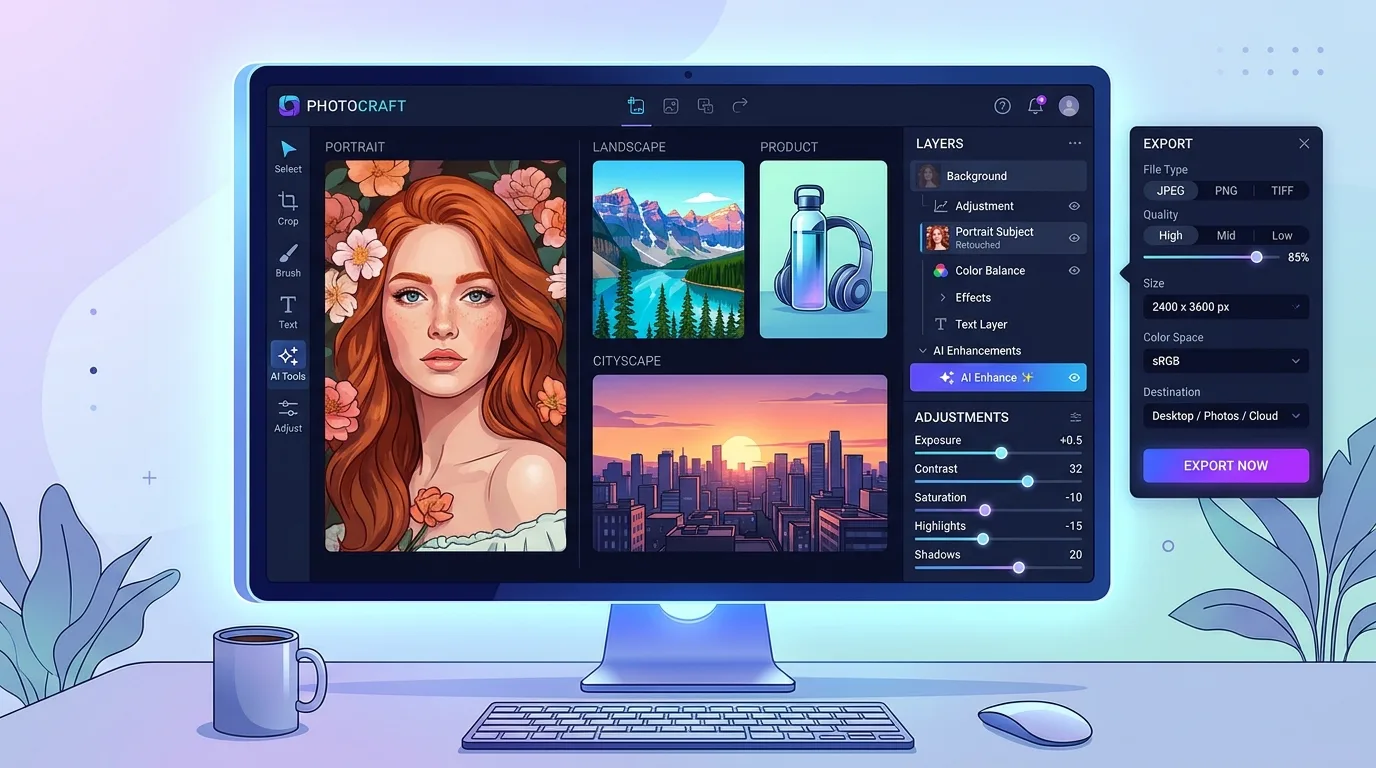
A single photo can need three different jobs: a quick crop for social media, a careful RAW correction for print, and a creative composite with several layers. The best photo editing software depends on which of those jobs you do most often, how much you want to pay, and whether your files should stay on your computer.
Adobe Lightroom and Photoshop remain the strongest choices for many serious photographers. Lightroom is built around organizing, correcting, and sharing large photo libraries. Photoshop is better for detailed image manipulation, compositing, and design. They aren't the only useful choices, though. Capture One, CyberLink PhotoDirector, DxO PhotoLab, Photopea, Skylum Luminar, Zoner Studio, and Photoshop Elements each solve a different problem.
If you want to edit a post, cover, thumbnail, reel, short, story, logo, business card, or flyer without installing software, Photo Video Editor gives you a browser-based alternative. Its photo and video editors work without an account, don't add a watermark to exports, and don't upload the files you edit for the editor to function.
The Best Photo Editing Software for 2026
| Software | Best for | Main strength | Important limitation |
|---|---|---|---|
| Adobe Lightroom Classic | Professionals | Library management and non-destructive corrections | AI features can be demanding on slower computers |
| Adobe Photoshop | Detailed image manipulation and design | Layers, masks, retouching, and composites | The interface takes time to learn |
| Adobe Lightroom | Photo workflow across devices | Cloud syncing and streamlined editing | Local printing is more limited than in Lightroom Classic |
| Adobe Photoshop Elements | Hobbyists | Guided edits and approachable creative effects | Fewer advanced lens and chromatic-aberration tools |
| Capture One | RAW file rendering | Detailed color control and camera profiles | More specialized and costly for casual users |
| CyberLink PhotoDirector | Workflow, editing, and effects together | Broad editing and AI feature set | RAW conversion and noise reduction trail the leaders |
| DxO PhotoLab | Noise reduction and camera corrections | Excellent lens and camera profiles | Fewer organization and design features |
| Photopea | Web-based editing | Photoshop-like layers in a browser | Advanced online storage and AI features may require payment |
| Skylum Luminar | Filters and distinctive fixes | Presets, sky replacement, and creative adjustments | Some generative AI features require a subscription |
| Zoner Studio | Low-cost all-in-one editing | Editing, organization, and effects in one program | Availability and feature depth vary by platform |
Adobe Lightroom Classic
Best for Professionals
- Excellent non-destructive editing and catalog tools
- Strong facial recognition, keywords, ratings, and metadata controls
- Supports RAW files from most current digital cameras
- Local storage works well for large archives
- Supports plug-ins and custom presets
- AI editing features may tax older systems
Lightroom Classic is the most complete choice when your work starts with hundreds or thousands of photos. You can import, sort, rate, keyword, correct, soft-proof, print, and export from one catalog. Its non-destructive workflow means your original file remains intact while your adjustments are stored separately.
Adobe Photoshop
Best for Detailed Image Manipulation and Design
- Large collection of correction, retouching, compositing, and design tools
- Layers, masks, selections, and blending modes support precise work
- Cloud Documents, collaboration, and synced libraries are available
- Color, detail, and light controls are as strong as those in Lightroom Classic
- The interface can feel complex, especially when layers and masks are new
Photoshop is the better fit when an edit changes the structure of an image. Use it to replace a sky, remove an object, combine several exposures, build a product graphic, or prepare a design for print. For a reliable workflow, duplicate the original layer, use adjustment layers and masks, and save a layered working file before exporting a flattened copy.
Adobe Lightroom
Best for Photo Workflow
The cloud-based Lightroom is designed for photographers who want their library and edits available across desktop, web, and mobile devices. Its Discover community lets photographers share editing steps and examine how an image changed from the original to the final version. It is easier to approach than Lightroom Classic, but users with very large local archives may prefer Classic's storage model.
Adobe Photoshop Elements
Best for Hobbyists
- Helpful face-tagging and geotagging features
- Guided Edits explain techniques beyond basic corrections
- Useful for effects such as color splash and motion blur
- It lacks some chromatic-aberration and lens-geometry corrections
- Cloud storage for mobile and web syncing is limited
Elements is a practical middle ground for people who want more than a phone editor but don't want to learn the full Photoshop interface. Guided workflows make common creative effects easier to repeat and understand.
Capture One
Best for Raw File Rendering
Capture One is aimed at photographers who care deeply about RAW detail, color, tethered shooting, and camera-specific rendering. It is especially useful when color consistency matters across a professional shoot. Its controls are powerful, but casual users may find the workflow more specialized than a general-purpose editor.
CyberLink PhotoDirector
Best for Combined Workflow, Editing, and Effects
- Includes core corrections and editing tools for photographers
- Offers a large collection of AI features with multiple model choices
- Perpetual-license and subscription options can suit different budgets
- The interface is less polished than Adobe's applications
- RAW conversion and noise reduction are behind the leading alternatives
DxO PhotoLab
Best for Noise Reduction and Camera Profile Corrections
DxO PhotoLab stands out for camera and lens corrections and for reducing noise in difficult images. It supports a wide range of RAW formats and includes non-destructive development tools, preset looks, overlays, and sky replacement. It has fewer catalog, keyword, face-recognition, and metadata-filtering tools than Lightroom, and it does not replace Photoshop for advanced composites.
Photopea
Best Web-Based Photo Editor
Photopea is one of the most capable browser editors for users who need layers, selections, masks, and familiar file formats without installing a desktop application. It is particularly useful on a shared computer or Chromebook. Its free tier is a strong option for many editing tasks, while advanced AI features and online storage may require a paid plan.
For a simpler browser workflow with photo, video, and business graphics together, try online photo editing in Photo Video Editor. You can open the editor directly, work on a local file, and export without creating an account.
Skylum Luminar
Best for Filters and Unique Fixes
Luminar focuses on accessible creative controls, preset looks, portrait adjustments, overlays, and sky replacement. It can be a good choice when you want distinctive results quickly. Check which features are included in the license you choose, since some generative AI tools require an annual subscription.
Zoner Studio
Best Low-Cost, All-in-One Image Editor
Zoner Studio combines organization, editing, effects, and output in one application. It is suited to photographers who want a broad toolset without building a workflow from several separate programs. Compare current platform support and licensing before buying.
Online, Free, and Mobile Alternatives
BeFunky combines a photo editor, collage maker, and graphic designer. Its photo tools cover quick adjustments, distraction removal, background changes, artistic effects, AI-assisted editing, and batch workflows. Canva focuses on templates and design projects alongside photo adjustments. Adobe Express offers a browser editor and mobile app, while Picsart combines editing, effects, templates, and AI creation.
Affinity is another option for users who want precise desktop editing without relying on the same subscription model as some competitors. Its appeal is control over layers, selections, and detailed adjustments. The best choice depends on whether your priority is a template-driven design workflow, professional RAW processing, or pixel-level editing.
For a broader shortlist, compare these free photo editing apps by export limits, privacy, platform support, and whether advanced tools are locked behind credits or a subscription.
Buying Guide: The Best Photo Editing Software for 2026
What Is the Best Photo Editing Software for Beginners?
Start with the software that matches the size of your problem. Apple Photos works on iPadOS, iOS, and macOS. Google Photos serves Android and ChromeOS users. Microsoft Photos is built into Windows. These tools offer basic light and color adjustments, cropping, organization, and Memories features. Many now include AI-assisted object or background removal.
Ambitious beginners can consider Lightroom for its guided Discover community and cross-device workflow. Photoshop Elements is helpful when you want in-program lessons, while a browser editor is convenient if you don't want a download or account. Photo Video Editor is useful for quick posts, covers, thumbnails, logos, business cards, flyers, and video exports. The photo editing guide explains common adjustments in plain language.
What's the Best Image Editing Software for Hobbyists?
Hobbyists often need more than a one-tap filter. Look for RAW support, cataloging, presets, local adjustments, creative effects, and dependable export settings. Lightroom and PhotoDirector are strong for importing, organizing, editing, and outputting images from mirrorless and DSLR cameras. Photoshop Elements is useful for guided effects such as color splash and motion blur.
If your hobby includes social graphics, product listings, or small business materials, a general-purpose browser editor may be more practical than a large desktop suite. It keeps common jobs such as photo editing and background change, transparent exports, and resizing in one tab.
How Do Photo Editors Handle Output and Sharing?
Output is part of the editing workflow, not an afterthought. Check whether the program supports JPEG, PNG, TIFF, RAW, PSD, SVG, or MP4 as needed. For printing, look for color management and soft-proofing, which previews how a printer may reproduce the colors in your image.
Lightroom Classic offers strong local printing and can publish to services such as Flickr and SmugMug. The newer Lightroom web workflow is more dependent on online services and is less suited to direct local printing. Some programs, including ACDSee Photo Studio and Lightroom, also provide online hosting for portfolios.
Photo Video Editor supports free SVG export for vector logos and designs and free MP4 export for videos. Files edited in the browser stay on your device for the editor workflow. Optional AI tools show their price before you run them. Background removal includes a free SD cutout, with HD available through credits or Pro.
What Is the Best Free Photo Editing Software?
You don't need to pay for every basic correction. Microsoft Photos, Apple Photos, and Google Photos cover everyday cropping, light, color, organization, and some AI-assisted fixes. Photopea offers a deeper browser-based layer workflow. BeFunky, Canva, Adobe Express, Picsart, and other online tools can be useful for quick graphics, although free plans may place limits on templates, exports, storage, or AI features.
Photo Video Editor's photo and video editors are free to use without an account, installation, or watermark on exports. The optional AI tools are different: AI product shots, AI headshots, photo fixes, logo concepts, and other generation features use paid credits, with the price shown before execution. That distinction matters when comparing free software with free trials or credit-based AI tools.
Photo Editor vs. Photo Editing Software: Which Do You Need?
A lightweight photo editor is enough for a crop, resize, background removal, transparent PNG, or social post. Full photo editing software makes more sense when you need RAW development, thousands of cataloged files, layers, masks, batch processing, color-managed printing, or repeatable presets.
For a quick job, open a browser editor and export the finished file. For a long-term photography archive, choose software with reliable catalog backups and a clear storage model. For vector logos, confirm that SVG export is available. For video, confirm that the editor can export MP4 at the size and frame rate your platform accepts.
Photo Editing Costs, Printing, and Professional Services
Photo editing cost depends on the task, the editor's skill, turnaround time, and whether the work includes retouching, masking, compositing, or revisions. A simple crop costs far less than detailed product cleanup or a high-end portrait retouch. Hourly pricing is useful for open-ended work, while a per-photo quote is easier to compare for a defined batch.
Searches such as “photo editing cost per photo,” “photo editing cost per photo in India,” and “photo editing cost per hour” can produce very different results because local markets, image complexity, and commercial usage rights vary. Ask what is included: source-file delivery, revisions, background changes, color matching, rush work, and printing preparation.
For “photo editing and printing near me” or “photo editing and printing,” check whether the provider edits locally, sends files to a lab, or prints from an uploaded gallery. Request a proof before a large order and confirm the paper, dimensions, color expectations, and crop. For routine work, doing the edit yourself in a browser can avoid a per-photo service fee.
A search for “photo editing date” or “photo date taken editor” usually means one of two things: changing the visible date printed on an image, or correcting the metadata date stored in the file. These are separate actions. A visible date is part of the pixels and requires retouching. Metadata may be changed in a photo manager, but the result should be verified after export because some apps strip or rewrite metadata.
“Photo editor costume” may refer to a costume-photo edit, a themed portrait, or a search typo. For a costume image, use a non-destructive workflow, preserve the original, and check the edges around hair, fabric, props, and transparent areas at full resolution.
AI Photo Editing: Where It Helps and Where It Fails
AI is useful for repetitive work such as selecting a subject, removing an unwanted object, extending a background, generating a product scene, or polishing a portrait. It can also introduce incorrect details, warped text, unnatural fingers, halos, and inconsistent shadows. Zoom in before delivery, especially around hair, jewelry, glasses, product labels, and architectural lines.
Use AI photo editing tools when the time saved justifies the result and the licensing terms suit your project. For sensitive images, check whether processing happens locally or requires an external AI service. In Photo Video Editor, the standard editors keep files on your device, while optional AI features are clearly separate and priced before use.
FAQ
How does photo editing work?
Import a copy of the image, crop and straighten it, correct exposure and white balance, adjust color and contrast, retouch distractions, sharpen appropriately, and export for the destination. Keep the original and choose the export format based on whether the image is for a website, social platform, archive, or print.
How do you do photo editing in Photoshop?
Open the image, duplicate the background layer, crop and straighten, use adjustment layers for light and color, make selections with masks, retouch on separate layers, and save the layered file. Export a JPEG or PNG copy only after checking the image at 100 percent.
How does a photo editing app work?
A photo editing app combines tools for cropping, light, color, filters, retouching, background removal, and sharing. Mobile apps are convenient for quick work. Browser and desktop editors are usually better when you need a large preview, layers, batch processing, or detailed export control.
How does AI photo editing work?
AI photo editing uses trained models to identify subjects, infer missing pixels, classify scenes, or generate new visual content. It can automate selection and cleanup, but you still need to inspect the result and check the cost, privacy terms, and commercial-use rights of the tool.
What photo editing apps are free?
Apple Photos, Google Photos, Microsoft Photos, Photopea, and several browser editors have free options. Photo Video Editor's core photo and video editors are free, require no account, and export without a watermark. Its optional AI tools use paid credits.
What photo editing software is free?
Built-in Apple, Google, and Microsoft tools are free for everyday edits. Photopea is a capable browser option for layers and common image formats. Free plans vary, so check export resolution, ads, storage, watermark rules, offline access, and AI credit requirements before choosing.
Everything in this article works in the browser editor. No watermark, no account.