 Photo Video Editor
Most AI photo and video tools resell access to one AI model and add their own margin. If you already pay for an AI service, that means paying twice. Photo Video Editor lets you connect the AI you already use and run the AI features through it, with no markup from us.
What you can connect
Under Settings, AI connections, you can add a connection in one of two ways:
- Sign in with your account where the provider supports it, such as a ChatGPT or Grok account.
- Paste an API key from a provider such as OpenAI, Google Gemini, Anthropic (Claude), xAI, OpenRouter, DeepSeek, Groq, Together, fal.ai or Alibaba, or any service with an OpenAI-compatible API.
The editor shows which connections can make images and which handle text and vision only, so you know what each one is good for.
What the AI is used for
- Video drafts: Create with AI in the video editor plans scenes, on-screen text and timing from your pictures and brief.
- Image generation and edits: generate an image, or change a selected area of a photo.
- Narration: one spoken line per scene, if you connect a voice-capable service.
The regular editors, the exports and the free background remover do not need any AI connection.
What it costs
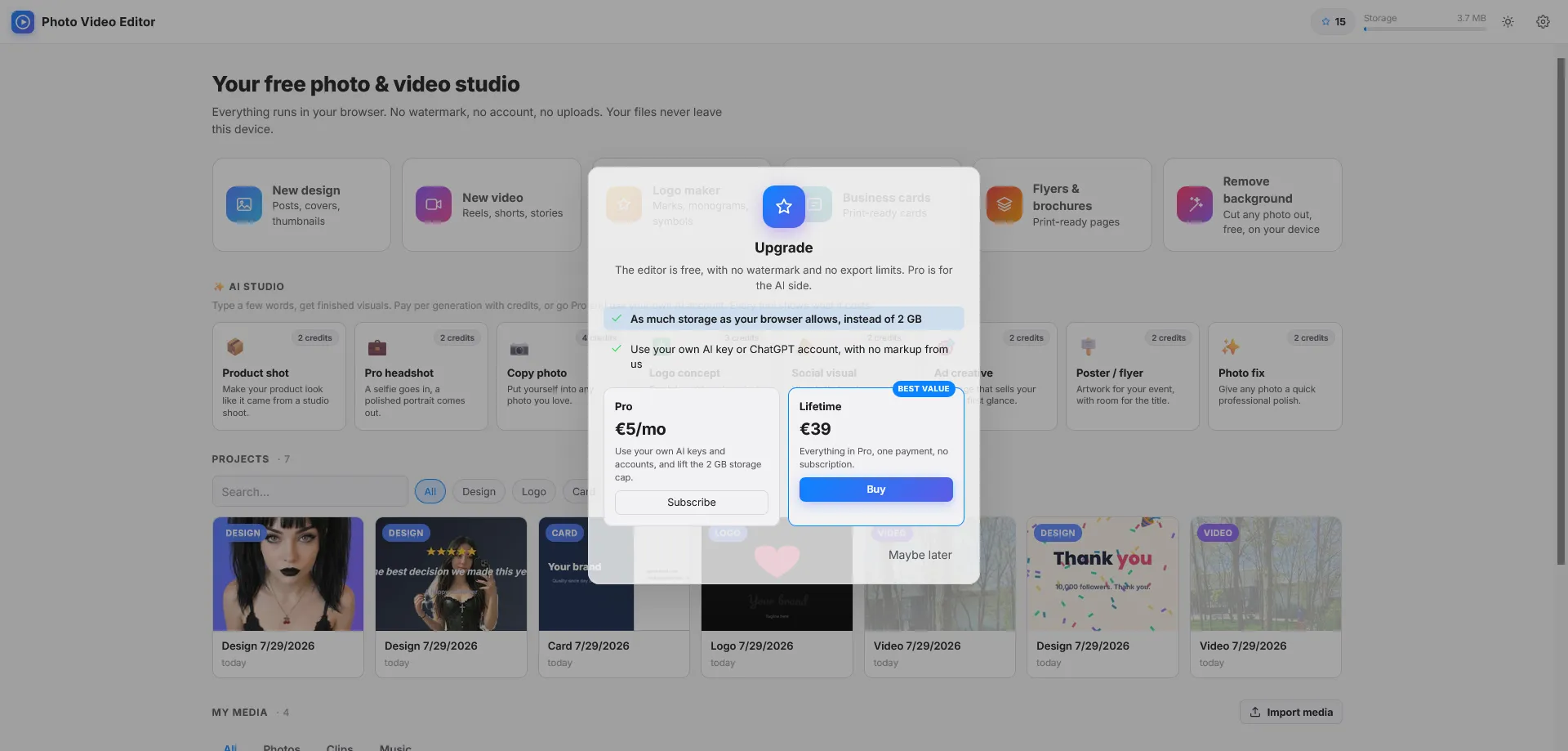
Connecting your own AI is part of Pro, at 5 euros a month or 39 euros once for Lifetime. What you then spend on the AI itself is between you and your provider: a signed-in account uses that account's own limits, and an API key is billed by the provider at their rates. Note that a chat subscription and an API key are usually billed separately. If you would rather not deal with any of that, credits work without Pro, and every AI tool shows its credit price before you run it. All prices are on the pricing page.
Where your data goes
When you use a connection, the request is sent to that provider, and the provider's terms apply to what you send. Only what the task needs is sent: for a video draft that is your brief and details of the selected files, plus a contact sheet of the pictures if the model can see images. Your media library and projects stay in your browser either way.
Which provider to choose
For video drafts, a model that can see images gives better scene plans because it knows which picture is the wide shot and which is the detail. For text-heavy work, any capable text model is fine. If one provider is slow or out of quota, add a second connection and switch in the dropdown; nothing in your project depends on a single provider.
Getting started
- Open the editor, go to Settings and choose AI connections.
- Add a connection: sign in, or paste your API key.
- In the video editor, select your pictures, press Create with AI and pick your connection under AI connection.
Next, read how to brief the AI for a video from photos.
Everything in this article works in the browser editor. No watermark, no account.