 Photo Video Editor
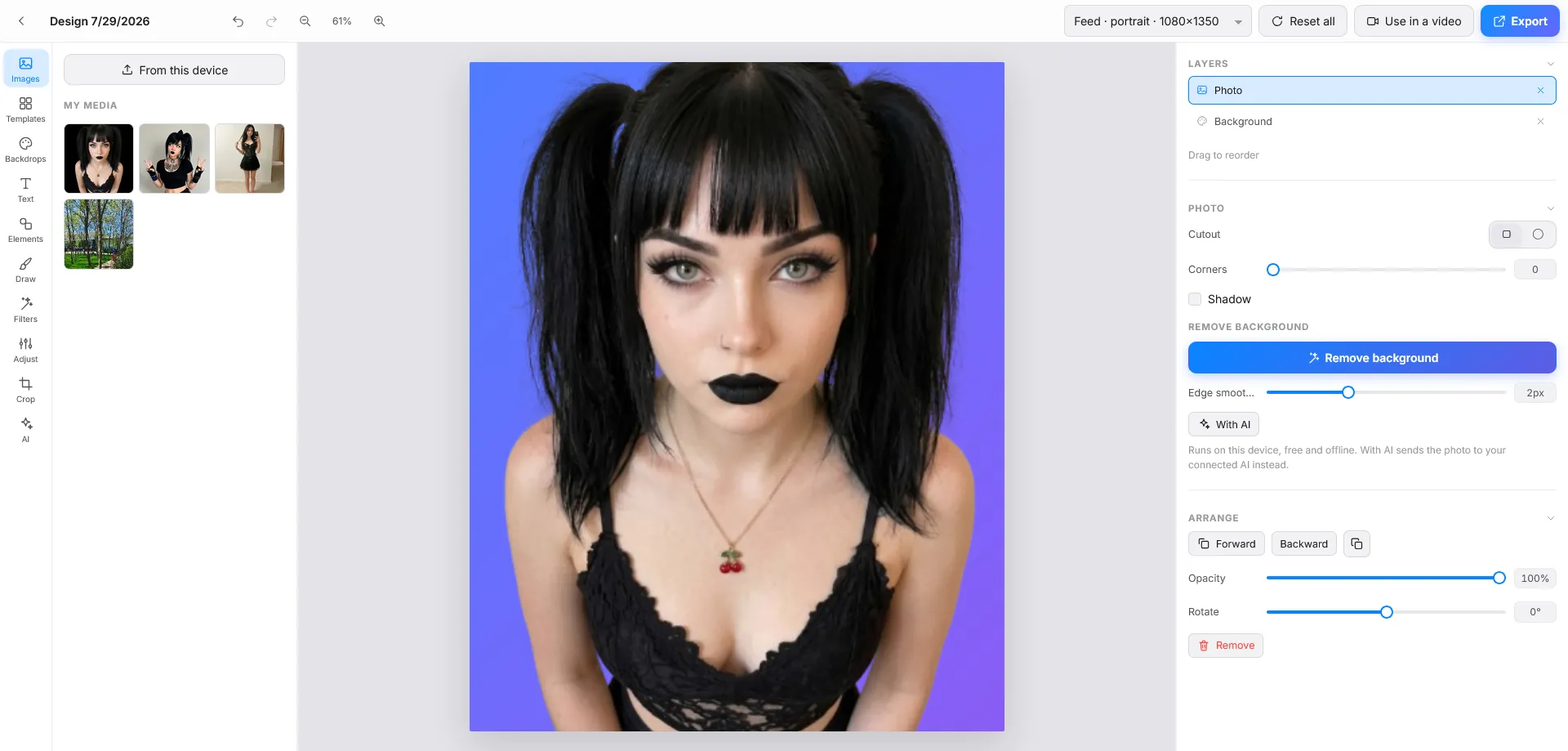
A clean product photo on a plain background sells better than the same product on a kitchen table, and you do not need a studio to make one. This guide takes one phone photo to a finished listing image with the free background remover and the photo editor.
1. Take a photo that is easy to cut out
The cut-out is only as good as the photo. Put the product on a surface that contrasts with it: a dark bottle on a white sheet of paper, a white mug on a dark board. Shoot next to a window in daylight, turn off the room lights so the colours do not mix, and hold the phone steady. Leave space around the product so no edge touches the frame.
2. Remove the background
Open the photo in the photo editor and press Remove background. The free cut-out (up to 1 megapixel) is enough for most marketplaces and social posts. For a large hero image on your own shop, use HD, which keeps the full resolution for one credit and is only charged if it works.
Zoom in and check the edges. Hard, jagged outlines can be softened with edge smoothing. Small leftover patches of background can be erased with the brush.
3. Choose the backdrop
- Plain white is the safe choice for marketplaces, many of which ask for it for the main image.
- A soft gradient or light colour works for your own shop and social posts, and gives the product a bit of depth.
- A matching scene (marble, wood, fabric) suits lifestyle products, as long as it does not compete with the product.
The editor has 26 backdrops and gradients. Add one as the bottom layer and put the cut-out above it.
4. Place the product properly
Centre the product and leave an even margin; a common rule for listings is that the product fills most of the frame without touching the edges. Keep it upright: if the phone was tilted, rotate the layer a few degrees. A subtle shadow under the product stops it from looking pasted on.
5. Export for where it is going
- A square image suits most marketplaces and feeds. Use the size presets.
- Export JPG for photos on a solid backdrop, and PNG if you need to keep the transparency for a designer or a website.
- Name the file after the product (blue-ceramic-mug-350ml.jpg). It helps you, and it helps image search.
Turn the photos into a short video
Once you have three or four clean images, you can turn them into a short product video: select them in the video editor and use Create with AI, or build it yourself on the timeline. See making a video from photos with AI.
Everything in this article works in the browser editor. No watermark, no account.